
You know that moment when you’re on a video call and you can barely see the person on the other end — they’re a dark silhouette backlit by a massive window — and every time they speak it sounds like they’re calling from inside a metal garbage can?
Yeah. That’s most meetings.
And if you’re really honest with yourself, it’s probably also your meetings from the other side. Your colleagues are being polite. They’re not going to tell you that you look like a ghost or that your audio sounds like a dial-up modem. But they’re noticing.
Here’s the thing: bad lighting and bad audio are almost never about expensive equipment. They’re about setup. They’re about placement, direction, and a few small decisions that take maybe 30 minutes to fix. You don’t need to gut your conference room or hire a whole AV team just to look and sound professional.
The irony is that companies spend thousands on camera systems, conferencing software licenses, and fancy monitors — and then completely blow it by ignoring the basics. A $3,000 camera pointed at a window with a laptop mic still sounds and looks terrible. Meanwhile, a $100 webcam with a decent key light and a halfway decent microphone can look genuinely impressive.
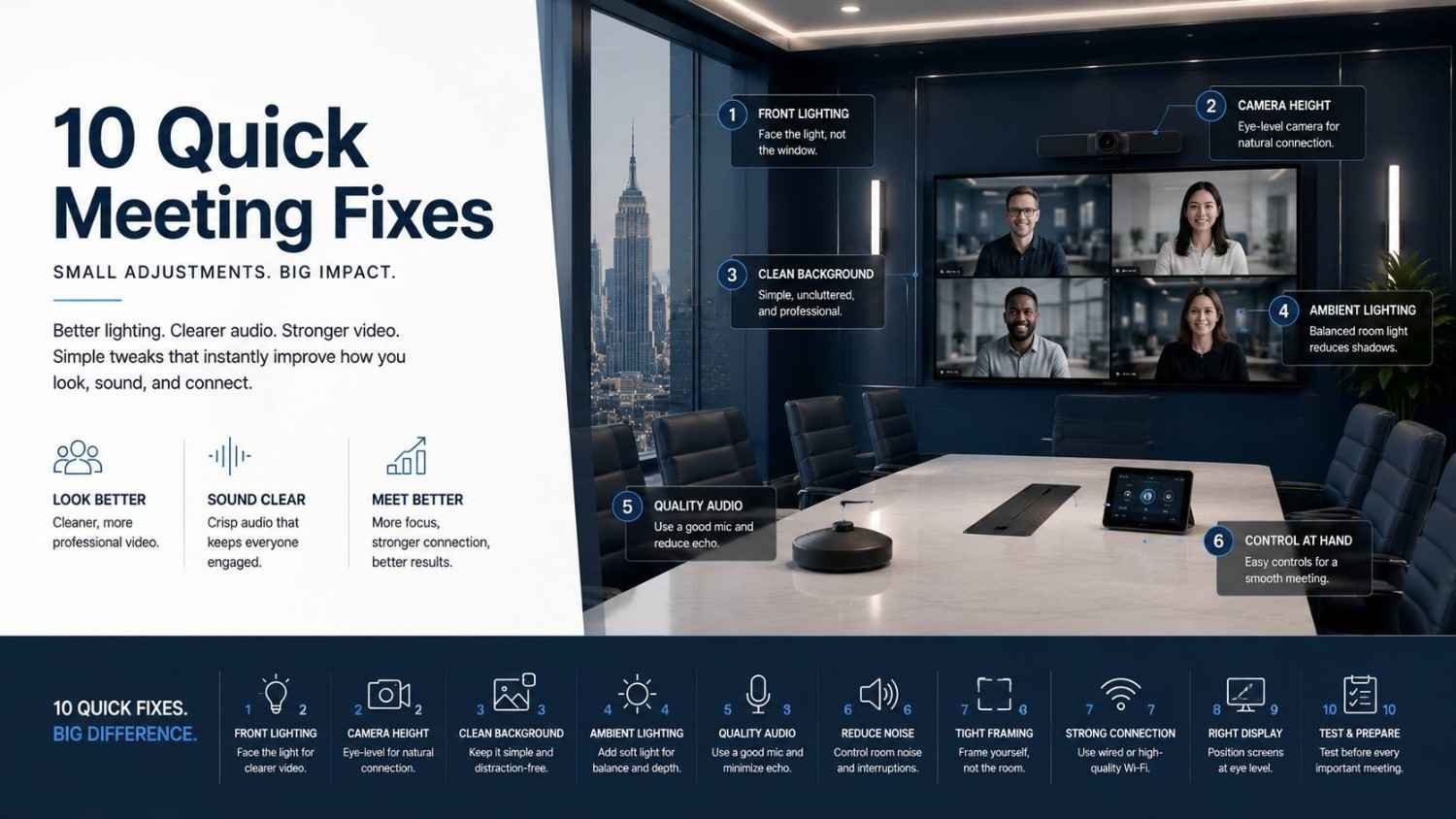
These 10 tweaks are practical, quick, and most of them cost next to nothing. Some of them you can implement in the next 20 minutes. Let’s get into it.
This guide covers one part of a larger subject. For the full picture, see our complete guide to room audio and lighting for video meetings.
Why Lighting and Audio Matter More Than You Think
Before we get into the fixes, let’s be honest about what’s actually happening when your meetings look and sound terrible.
When your face is dark or washed out, people are working harder just to read your expressions. Eye contact feels off. You look less confident, less present. It’s subtle, but it adds friction to every single conversation. In a sales call, that friction could cost you the deal. In a team meeting, it just makes everything feel slightly harder than it should.
Audio is even more brutal. Studies consistently show that bad audio reduces comprehension and makes people tire out faster — a phenomenon sometimes called “listener fatigue.” If your mic keeps cutting out, if there’s echo bouncing off your glass walls, if your HVAC is providing constant background percussion — people are spending energy filtering that out instead of actually listening to what you’re saying. By the 45-minute mark of a meeting with bad audio, everyone in that call is exhausted in a way they can’t quite explain.
There’s also a perception piece that nobody likes to talk about but is completely real. When someone’s audio and video quality are consistently bad, we subconsciously associate it with disorganization, low effort, or technical incompetence. It’s not fair. But it happens. First impressions on video are formed in seconds, and a lot of that impression is shaped by how you look and sound before you’ve said a single word.
The stakes are real. Whether you’re in a huddle room for quick syncs or a full executive boardroom, the fundamentals of how you sound and look directly affect how your message lands. And the good news is that most of the worst problems are completely fixable without spending much money at all.
Now let’s fix it.
Lighting Tweaks That Make a Real Difference
Tweak #1: Stop Sitting in Front of a Window
This is the single most common lighting mistake in video meetings. You put your back to the window because it feels comfortable — natural light behind you, screen in front. But from the camera’s perspective, you just became a shadow puppet.
Your camera’s exposure is trying to balance the bright light pouring in behind you. It can’t. So it either blows out the background (hello, nuclear glow) or dims down until your face is basically unreadable.
The fix is dead simple: turn around. Put the window in front of you, not behind you. Natural light hitting your face from in front is flattering, even. If your desk setup doesn’t allow for that, close the blinds or curtains and use artificial light instead — at least then you’re in control.
Tweak #2: Add a Key Light (or Just Point a Lamp at Your Face)
A “key light” sounds fancy. It’s not. It’s just a light source that points at your face from roughly eye level, slightly off to one side.
You don’t need a $400 ring light for this. A lamp with a daylight-balanced bulb (5000–6500K color temperature) placed a few feet in front of you does the job. The goal is even, soft illumination on your face without harsh shadows under your chin or eyes.
If you’re setting up a dedicated meeting space, this is worth doing properly. Good lighting calibration for video meetings can make an average camera look almost professional-grade.
Tweak #3: Match Your Color Temperature
Here’s something most people never think about: mixing warm and cool light sources creates a weird, inconsistent look on camera. You’ll have one side of your face looking orange (warm bulb) and the other looking blue-white (cool window or overhead fluorescent).
Pick one. Ideally, go with daylight-balanced bulbs (5000–6500K) throughout the space you’re using for meetings. They tend to look cleaner on camera and are generally more flattering.
If you’re working with overhead office lighting you can’t change, at least make sure your key light matches it closely rather than fighting against it.
Tweak #4: Use Indirect or Diffused Light Instead of Direct Sources
Direct light — a bare bulb pointing straight at you, or harsh overhead fluorescents — creates unflattering shadows and eye squinting. Diffused light (bounced off a wall, filtered through a lampshade, or coming from a larger panel) wraps around your face more evenly.
If you’re setting up a dedicated meeting room, consider wall-wash lighting or LED panels with diffusion covers. For the home office crowd, bouncing a lamp off a white wall or ceiling does surprisingly well.
This principle applies at scale too. For larger spaces like boardrooms where executives need to project authority and clarity, proper diffused lighting isn’t optional — it’s part of the room’s communication infrastructure.
Tweak #5: Don’t Forget Background Lighting
Your background matters. A dark, murky background makes even a well-lit face look amateurish. A background that’s way brighter than you creates exposure problems for the camera.
The goal is balance. You want your background roughly the same brightness as your face, maybe slightly dimmer. A simple floor lamp or wall sconce behind you — not pointing at the camera — adds depth and makes the whole frame feel more polished.
This is especially worth thinking about if you’re on calls with clients or running presentations. How your space looks reflects on your professionalism whether you like it or not.
Audio Tweaks That Clean Up Your Sound
Tweak #6: Get Off Your Built-In Laptop Microphone
Built-in laptop mics are designed to pick up everything: you, the person next to you, the hum of your laptop fan, that chair scraping across the floor two rooms over. They’re omnidirectional by design because laptop manufacturers don’t know how you’ll use the machine.
For meetings, this is a problem.
Even a $30–50 USB cardioid microphone (one that mostly picks up what’s directly in front of it) is a massive upgrade. You’ll instantly sound cleaner, closer, and more present to the people on the other end.
If you’re in a shared conference room, a ceiling-mounted mic array or a tabletop conferencing microphone calibrated for the room size is the right move. The difference in audio quality from getting off a built-in mic is one of those things people notice immediately, even if they can’t articulate why.
Tweak #7: Watch Your Mic Placement
Even a good microphone sounds terrible if it’s in the wrong spot. Key rules:
- Keep it close. Most mics sound best within 6–18 inches of your mouth. The further away, the more room noise gets picked up relative to your voice. This is called the inverse square law, and it matters a lot more than most people realize.
- Avoid desk vibrations. Mic stands that sit directly on desks pick up every keystroke and table bump. A shock mount or isolation pad helps significantly, especially in rooms where other people are also typing or moving things around.
- Don’t put it directly in front of your face. Position it slightly below your mouth (so it’s not capturing every “p” and “b” sound as a puff of air) or use a pop filter if you can’t change the angle.
- Think about the room, not just the mic. Where you place the mic relative to walls and reflective surfaces changes what it picks up. Pointing it away from hard walls and toward softer surfaces in the room will reduce reflections in your signal.
For larger conference rooms with multiple people around a table, placement becomes a whole strategy. Getting this right — knowing how many mics you need and where they go — is covered in detail in guides like this one on microphone placement for boardrooms with 6–12 people.
Tweak #8: Kill Echo Before It Starts
Echo is the enemy of clear communication. It happens when sound bounces off hard surfaces — glass, concrete, bare drywall — and arrives at the microphone slightly after the original sound.
In a lot of modern offices, this is a serious problem. Open plans, glass conference rooms, hard floors — it’s basically an echo machine.
Here’s what actually works:
- Soft furnishings absorb sound. Carpets, upholstered chairs, acoustic panels, curtains — anything soft kills reflections.
- Tablecloths on conference tables make a surprising difference.
- Acoustic panels or foam on the walls behind and beside you can clean up a room dramatically.
If your room is a glass box, you’ve got a specific challenge on your hands. There’s a fascinating case study on reducing echo in glass-walled rooms that shows how much difference targeted treatment makes even without major construction.
Tweak #9: Enable (and Configure) Noise Suppression Properly
Every major conferencing platform — Zoom, Teams, Google Meet, Webex — has built-in noise suppression. Most people leave it on its default setting and forget about it. That’s a mistake.
Here’s why: aggressive noise suppression can chop off the beginning of words, make voices sound robotic, or create weird breathing artifacts. It works by trying to learn what “background noise” sounds like and filter it out continuously. But if your voice is quiet relative to the background, or if you’re speaking softly, it can accidentally treat parts of your voice as noise.
Not aggressive enough and background noise bleeds through. The right setting depends on your environment and your mic.
If you’re in a quiet home office with a good mic, a low or medium noise suppression setting usually sounds more natural and preserves the full quality of your voice. If you’re in a loud office environment, a room with HVAC noise, or anywhere near other conversations, max it out and accept the slight artificiality — it’s still better than constant background chaos.
Take five minutes in your next call setup to actually test different settings with a colleague. Ask them which sounds better, not which sounds like you think it should sound. It’s also worth knowing how your specific platform handles this — the controls look different in Microsoft Teams room configurations versus Google Meet setups versus Zoom. They don’t all use the same processing algorithms, and the “high” setting on one platform is not equivalent to “high” on another.
Tweak #10: Check Your Room’s HVAC and Fix the Obvious Noise Sources
This one sounds obvious, but you’d be shocked how often people jump into detailed mic placement strategies while ignoring the industrial air handler three feet above their head.
Before you do anything else, sit in your meeting room in silence for 30 seconds. Just listen. What do you hear?
HVAC hum? Is there a refrigerator nearby? A fish tank? Traffic from outside? Each of those is a noise floor issue that no amount of software processing will fully eliminate.
Some fixes:
- Turn off non-essential noise sources before calls (that mini fridge in the corner, the fan you have running for comfort).
- Move your mic away from HVAC vents if possible.
- Close the door. Yes, this matters more than you think.
For office environments where HVAC noise is baked into the building, this is where proper acoustic treatment pays for itself. It’s not just about panels on the wall — it’s a systems-level decision that’s part of any solid room audio and lighting strategy.
Putting It All Together — the Bigger Picture
These 10 tweaks will get you a long way. But they’re all micro-adjustments within a larger context.
If you’re setting up a meeting room from scratch, or you’re dealing with a space that has persistent problems — bad echo, inconsistent lighting, audio that sounds fine in testing but falls apart in real meetings — there’s usually something more systemic going on.
Here’s what that often looks like in practice:
The wrong mic for the room size. A mic designed for a single person sounds terrible trying to cover a 10-person conference table. The geometry of the room matters. Getting the right gear for your specific space — whether that’s a small huddle room design or a large town hall setup — requires knowing what you’re actually dealing with.
Gear that hasn’t been calibrated. You can buy great equipment and still have a terrible-sounding room if nothing’s been set up properly. EQ settings, gain staging, mic polar patterns — these aren’t set-and-forget. They need to be tuned to the room. That’s what proper audio and visual calibration actually means.
Wiring and cable routing that creates interference. Unshielded cables running near power lines. Audio cables bundled with ethernet. Ground loops from mismatched equipment. These introduce hum, buzz, and interference that shows up as noise in your signal chain. Proper AV wiring practices exist specifically to prevent these issues.
Platform-specific quirks. Each conferencing platform handles audio processing differently. If you’ve ever noticed that your setup sounds perfect on one platform and weirdly choppy on another, that’s not you imagining things. Understanding how to optimize audio specifically for hybrid presentations on Zoom is a different challenge than dialing in Teams.
What to Do If Tweaks Aren’t Enough
Sometimes you reach the limit of what tweaks can fix. You’ve moved your mic, adjusted your lighting, treated the walls — and the room still sounds like a cave or looks like a horror film.
That’s usually the sign of a structural problem: the room wasn’t designed for video communication in the first place.
When that’s the case, you’re looking at one of a few options:
A proper room assessment. Someone who knows AV comes in, looks at your space, listens to the problems, and gives you a real diagnosis. Not just “buy this mic” — an actual analysis of acoustics, lighting angles, sight lines, and equipment needs.
A phased upgrade. You don’t have to fix everything at once. Start with audio (usually the most impactful) and work your way through. Understanding video conferencing setup costs by room size helps you plan what a realistic budget looks like at each phase.
A full room design. For organizations that are serious about hybrid work, custom conference room design means building a space that actually works from day one — right camera angles, correct lighting placement, proper acoustic treatment, clean cable management, and equipment that fits the room. No bandaids.
The choice between mic selection and acoustic treatment often comes down to budget and room type. There’s a useful breakdown of the trade-offs between acoustic treatment and microphone selection that’s worth reading if you’re trying to decide where to put your money.
A Quick Reference — The 10 Tweaks
Here’s a fast summary:
- Stop sitting with a window behind you — put the light source in front of you.
- Add a key light at eye level — even a simple lamp works.
- Match your color temperature — consistent light looks cleaner on camera.
- Use diffused light, not direct sources — softer wrap = fewer harsh shadows.
- Light your background too — balance it with your face.
- Get off your built-in laptop mic — any dedicated mic is better.
- Watch your mic placement — closer, lower, isolated from vibration.
- Treat the room to kill echo — soft surfaces, panels, and smart furniture placement.
- Configure noise suppression properly — default settings aren’t always right.
- Eliminate obvious noise sources — HVAC, fans, background hum.
Each of these is a 15-minute fix or less. None of them require a major purchase. And most of them have a bigger impact on how you’re perceived in meetings than any camera upgrade ever would.
Final Thoughts
Look, most people have just accepted that video meetings look and sound mediocre. They’ve normalized it. But you don’t have to.
The gap between “acceptable” and “genuinely good” is much smaller than people think. It doesn’t take a full studio build. It takes attention to the basics: where the light is coming from, where the mic is pointing, and whether you’ve set up your room to work with you instead of against you.
Start with one or two tweaks today. You’ll be surprised how quickly the people you meet with start responding differently — more engaged, less frustrated, less distracted. Because when communication is easy, ideas actually get through.
And if you’re ready to go beyond tweaks and actually build a space that performs consistently, there are people who specialize in exactly this — from small offices to full enterprise deployments. Getting professional video conferencing equipment setup right the first time is almost always cheaper than years of mediocre calls and the piecemeal upgrades that never quite fix the problem.
Your meetings are worth it.