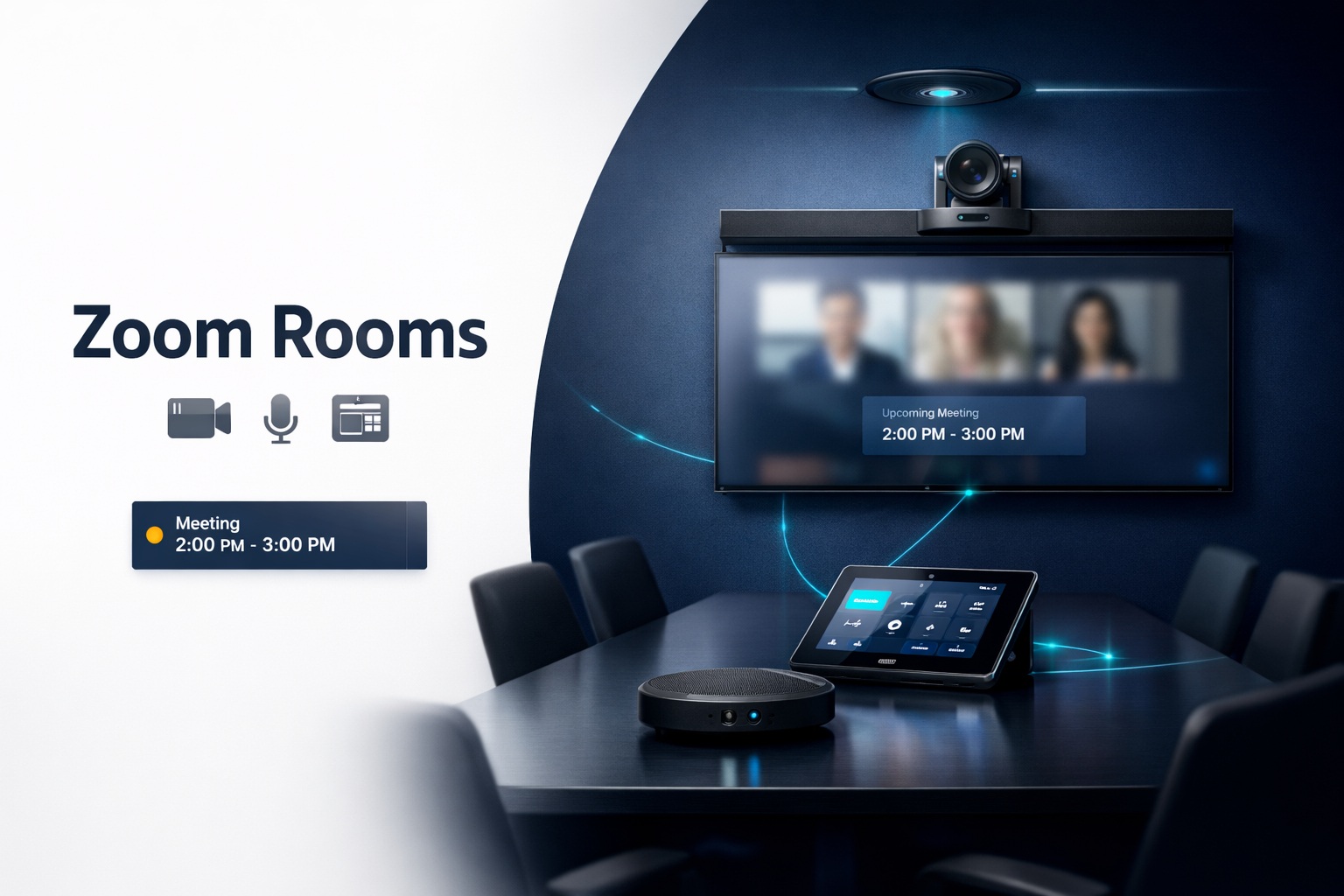
You know what’s wild? I’ve seen companies drop $50,000 on a gorgeous boardroom only to have their first video call sound like they’re broadcasting from inside a tin can. That’s because setting up Zoom Rooms isn’t just about buying expensive gear and hoping it works.
Here’s the thing—Zoom Rooms can transform how your team collaborates, but only if you actually set them up right. I’m talking about the whole package: hardware that plays nice together, software that doesn’t crash mid-presentation, and a room layout that doesn’t make half your team look like disembodied heads floating in the darkness.
This guide walks you through everything. And I mean everything. From picking the right gear to making sure Karen from accounting can actually start a meeting without calling IT.
What Are Zoom Rooms, Really?
Let me clear this up because there’s confusion here. Zoom Rooms isn’t just regular Zoom on a bigger screen. It’s a dedicated software solution that turns any space into a proper video conferencing hub.
Think of it this way: regular Zoom is what you use on your laptop. Zoom Rooms is what happens when you want an entire conference space to become a meeting tool. You walk in, tap a screen, and boom—you’re connected. No fumbling with laptops. No “can you share your screen?” delays. Just professional-grade video meetings that actually work.
The system runs on dedicated hardware (usually a tablet or touch panel controller) and connects to displays, cameras, microphones, and speakers. It’s designed for consistent, repeatable meeting experiences. The kind where your CEO doesn’t have to ask “how do I unmute?” fifteen times.
Planning Your Zoom Rooms Setup
Before you buy anything, you need a plan. I’ve watched people waste serious money because they skipped this step.
Room Assessment
Start by looking at your actual space. How big is it? What’s the lighting situation? Are there windows everywhere creating glare? Is there a weird echo when people talk?
For small spaces (4-6 people), you’re probably looking at a huddle room situation. Medium rooms (6-12 people) need different gear than large conference room spaces that hold 15+ people.
Measure your room. I’m serious. Get the dimensions. Know where power outlets are. Check if there’s existing AV infrastructure or if you’re starting from scratch.
Understanding Your Use Case
How will people actually use this room?
Daily standups with remote team members? Client presentations where you need crystal-clear audio? All-hands meetings with 50 people in the room and 200 joining remotely?
Different scenarios need different setups. A huddle room designed for quick collaboration doesn’t need the same firepower as a town hall space where you’re broadcasting to hundreds.
Budget Reality Check
Here’s what nobody tells you: budget isn’t just about the initial purchase. You’ve got hardware costs, licensing fees, installation (unless you’re very brave), ongoing support, and inevitable upgrades.
A basic small conference room setup might run $3,000-$8,000. Mid-size rooms? Think $10,000-$25,000. Large spaces with multiple displays and advanced features? You could easily hit $50,000+.
Don’t forget the Zoom Rooms software license itself. It’s separate from regular Zoom licenses and runs around $49-$59 per room per month depending on your plan.
Essential Hardware Components
Let’s talk gear. This is where things get fun—or frustrating if you pick wrong.
The Display Situation
Your display is what everyone stares at for hours. Don’t cheap out here.
For most rooms, you want at least a 55″ display. Bigger rooms need bigger screens—65″, 75″, or even multiple displays. I’ve seen setups with three screens: one for video, one for content sharing, and one for meeting controls.
Resolution matters. 4K is standard now. Anything less looks fuzzy, especially if you’re displaying detailed spreadsheets or design work.
Make sure your display has multiple HDMI inputs. You’ll need them. And get one with good viewing angles because there’s always someone sitting off to the side who still needs to see.
Camera Selection
This is where people mess up constantly. They buy a camera based on specs without thinking about the actual room.
For huddle rooms, a decent 1080p camera with a 90-120 degree field of view works fine. Something like the Logitech MeetUp or Rally Bar Mini.
Medium rooms need cameras with wider coverage and better zoom capabilities. The Logitech Rally system is popular for good reason—it tracks speakers and frames people properly.
Large rooms? You might need multiple cameras or PTZ (pan-tilt-zoom) cameras that can actually see everyone. Nothing’s worse than remote participants squinting at tiny faces in the distance.
Here’s a pro tip: test camera placement at actual sitting height. I’ve seen cameras mounted too high, giving everyone unflattering up-the-nose angles. Mount it at eye level when people are seated.
Microphone Configuration
Audio is more important than video. Read that again.
People will tolerate slightly fuzzy video, but bad audio kills meetings dead. Echo, background noise, people sounding like they’re in a tunnel—these things make meetings unbearable.
For smaller spaces, an integrated soundbar with microphone arrays (like the Logitech Rally Bar or Poly Studio) might work. These combine speakers, mics, and cameras in one unit.
Bigger rooms need dedicated conference room microphones. Ceiling mics, table mics, or boundary mics depending on your setup. Brands like Shure, Sennheiser, and ClearOne make excellent options.
The key is coverage. Your mic pickup pattern needs to cover where people actually sit. If someone’s outside the pickup zone, they might as well not be there.
Acoustic treatment helps too. Those fabric wall panels aren’t just decoration—they reduce echo and make voices clearer.
Speaker Systems
Built-in TV speakers are garbage for conference rooms. Just terrible.
You need dedicated speakers that can fill the room without distortion. Soundbars work for small spaces. Larger rooms might need in-ceiling speakers or wall-mounted systems.
Position matters. Speakers should be near the display so it feels like remote participants are actually talking from the screen. Helps with that whole “natural conversation” thing.
Test volume levels before your first real meeting. You want loud enough that everyone hears clearly, but not so loud that it causes feedback or sounds like you’re at a rock concert.
Touch Panel Controllers
This is your command center. Usually a tablet (iPad is common) or dedicated touch panel like the Logitech Tap or Poly TC8.
The controller lets you start/end meetings, adjust camera and audio, share content, and control room settings. It should be intuitive enough that anyone can use it without training.
Mount it somewhere accessible. Middle of the conference table is typical. Some people do wall mounts near the entrance. Just make sure it’s not hidden behind someone’s laptop.
Connectivity Hardware
You need something to bring all this together. That’s usually a Zoom Rooms appliance (basically a small computer) or a Zoom Rooms-compatible device.
Options include:
- Mac Mini (popular choice)
- Windows PC meeting Zoom’s specs
- Purpose-built appliances from partners like Lenovo or HP
- All-in-one solutions that integrate everything
The appliance runs the Zoom Rooms software and connects to all your peripherals. It needs reliable network connectivity—preferably wired Ethernet, not WiFi. WiFi is fine for laptops, but conference room systems should be hardwired for stability.
Network Requirements and Connectivity
Speaking of networks, this is critical. A Zoom Room is only as good as its network connection.
Bandwidth Needs
For video calls, you need consistent bandwidth. Zoom recommends:
- 1.5 Mbps up/down for 720p video
- 3.0 Mbps up/down for 1080p video
- 8.0 Mbps up/down for 4K video (if you’re getting fancy)
But here’s the reality: that’s per participant. If you’re in a meeting with 10 people, those numbers multiply. Plus you need headroom for screen sharing, multiple video feeds, and general network traffic.
I recommend planning for at least 10-15 Mbps dedicated to each Zoom Room. More if you’re doing 4K or have large meetings regularly.
Wired vs. Wireless
Use wired Ethernet. Period.
WiFi is convenient, sure. But it’s also unpredictable. You get interference from other devices, signal degradation, random dropouts during important presentations.
Wired connections are stable. They don’t cut out because someone turned on a microwave three floors down. If you’re doing a professional conference room setup, you want that reliability.
If you absolutely must use wireless, at least use enterprise-grade WiFi 6 access points with dedicated bandwidth for the conference room.
Quality of Service (QoS)
This is where your IT team earns their salary. QoS settings prioritize video conferencing traffic over less critical data.
Configure your network to prioritize Zoom traffic. Mark video/audio packets as high priority. This ensures your video calls don’t get choked out when someone starts downloading massive files.
Zoom has specific DSCP values they recommend. Make sure your network gear respects them.
Software Setup and Configuration
Hardware’s done. Now for the software side, which is honestly where most confusion happens.
Zoom Rooms License Activation
First, you need the actual Zoom Rooms license. This is separate from your regular Zoom account.
Log into your Zoom admin portal (admin.zoom.us), go to Room Management, and add a new Zoom Room. You’ll assign it a name (usually something like “Conference Room A” or “Second Floor Huddle Room”).
The system generates an activation code. You’ll enter this on your Zoom Rooms controller during setup. Once activated, the room appears in your organization’s scheduling system.
Controller Setup Process
Turn on your tablet or touch panel. Install the Zoom Rooms controller app. It’ll ask for your activation code.
Enter the code, and the controller connects to your Zoom account. From there, you’ll configure basic settings: room name, calendar integration, and layout preferences.
The interface is pretty straightforward. Main screen shows upcoming meetings, one-touch join buttons, and controls for camera/audio/sharing.
Calendar Integration
This is crucial for making Zoom Rooms actually useful. You want it connected to your calendar system (Google Calendar, Microsoft 365, Exchange).
When integrated, the room displays upcoming meetings and lets people join with one tap. No typing in meeting IDs or passwords. Just walk in and tap “Join.”
You can also reserve rooms through your normal calendar system. Book a conference room in Outlook, and it automatically shows up on the Zoom Room display.
Set this up right and people can actually use the system without IT support.
Room Layout and Design Considerations
Even the best equipment fails if your room layout is wrong.
Seating Arrangement
Everyone in the room should be visible on camera. Sounds obvious, but I’ve seen rooms where half the table is in a blind spot.
For rectangular tables, put the camera at one end capturing the whole length. For round tables, camera goes at the narrower side if possible.
Make sure seating puts people facing the display and camera. Nobody should have to twist around to see the screen.
Consider camera framing. You want medium shots of people, not extreme close-ups or shots so wide everyone looks tiny. Test this with actual bodies in seats.
Display Positioning
Mount displays at the right height. Too high and everyone’s craning their necks. Too low and it feels weird.
Generally, the center of the display should be at or slightly above seated eye level. For a standard conference table, that’s around 48-52 inches from the floor.
If you’re using multiple displays, arrange them thoughtfully. Main display in the center for video, flanking displays for content sharing works well.
Avoid placing displays where windows create glare. If that’s unavoidable, get some decent blinds or curtains.
Lighting Setup
Lighting can make a $20,000 camera system look like garbage or make a decent camera look amazing.
You want even, diffused lighting on participants’ faces. Avoid harsh overhead lights that create shadows under eyes and noses. Nobody looks good with raccoon eyes.
Windows are tricky. Natural light is great but creates problems if people are backlit. You end up with silhouettes instead of faces. Either position seating away from windows or use blackout shades during calls.
Consider adding dedicated video conferencing lights. LED panels mounted on walls or ceilings provide consistent, flattering illumination. Proper lighting and sound calibration makes a massive difference in perceived video quality.
Acoustic Treatment
Sound bounces around hard surfaces. Conference rooms with lots of glass, hard floors, and empty walls create echo chambers.
Add some acoustic absorption. Fabric panels on walls, acoustic ceiling tiles, carpeting, or even strategically placed furniture helps dampen echo.
You don’t need to turn the room into a recording studio, but some basic treatment prevents that hollow, echoey sound that makes meetings exhausting.
Integration with Other Systems
Zoom Rooms doesn’t exist in isolation. It needs to play nice with your other tools.
Calendar System Integration
I mentioned this earlier, but it’s worth expanding on. Calendar integration transforms Zoom Rooms from a gadget into an actual productivity tool.
With Microsoft 365 or Google Workspace integration, your Zoom Room becomes part of your scheduling ecosystem. Book the room in Outlook or Google Calendar, and the Zoom Room automatically loads the meeting details.
People can join scheduled meetings with one tap. No manual entry. No “what’s the meeting ID again?” nonsense.
The room status shows on the display outside the conference room (if you have a scheduling panel). Green means available, red means occupied. Helps prevent awkward situations where people barge in on occupied rooms.
Single Sign-On (SSO)
For organizations with SSO, integrate it with Zoom. Users authenticate once and access everything without multiple logins.
This is more than convenience—it’s security. SSO means centralized access control. Someone leaves the company? Disable their account and they lose access to everything, including Zoom Rooms scheduling.
Supports SAML-based identity providers like Okta, Azure AD, OneLogin, and others.
Third-Party Applications
Zoom Rooms can integrate with various third-party tools through APIs and partnerships.
Room scheduling systems like Robin or Envoy connect with Zoom Rooms for enhanced desk and room booking. Digital signage systems can display room availability. Analytics platforms can pull usage data.
If you’re building custom workflows, Zoom has APIs that let you programmatically control rooms, gather data, and integrate with basically anything.
Comparing Platform Options
Okay, real talk. Zoom Rooms isn’t your only option. Let’s see how it stacks up.
Zoom vs. Microsoft Teams Rooms
Teams Rooms is the obvious competitor if you’re already deep in the Microsoft ecosystem.
Teams Rooms integrates better with Microsoft 365, naturally. The interface feels more familiar if your team lives in Teams daily. Calendar integration is seamless since it’s all Microsoft.
But Zoom Rooms often wins on video quality and ease of use. The interface is simpler. Setup is generally more straightforward. And if you’re collaborating with external partners, Zoom has wider adoption.
Cost is comparable. Both require dedicated licenses and similar hardware investments.
If your entire company runs on Microsoft 365 and everyone uses Teams exclusively, Teams Rooms might make sense. Otherwise, Zoom’s broader compatibility is valuable.
Zoom vs. Google Meet Hardware
Google Meet hardware (formerly Hangouts Meet) is Google’s play in this space.
It’s tightly integrated with Google Workspace. If you’re a Google shop, it works well. Interface is clean and simple.
But hardware options are more limited. Zoom has partnerships with basically everyone. Google’s ecosystem is smaller, which can mean fewer choices for specific room configurations.
Google Meet hardware is generally easier for basic setups but less flexible for complex configurations. Choosing the right Google Meet room setup depends on your specific Google Workspace usage.
Zoom vs. Webex Rooms
Cisco Webex Rooms is another heavy hitter, especially in enterprise environments.
Webex has deep integration with Cisco’s broader collaboration portfolio. If you’ve already got Cisco phones, network gear, and collaboration tools, Webex Rooms fits right in.
The platform is mature and feature-rich. It’s strong on security and management, which enterprises love.
Downside? It’s often more expensive. Setup can be more complex. And unless you’re already a Cisco shop, you might not need all that integration.
For most organizations, Zoom hits a sweet spot between features, cost, and ease of use. But evaluating Webex for your conference rooms is worth it if you’re in that Cisco ecosystem.
Installation Best Practices
You can hire professionals or DIY this. Both have pros and cons.
Professional Installation vs. DIY
Professional installation costs more upfront but saves headaches. Installers know cable management, proper mounting heights, network configuration, and troubleshooting. They’ll get it right the first time.
DIY is cheaper but requires technical skill. You need to understand AV systems, networking, and software configuration. If something goes wrong, you’re on your own.
For basic huddle rooms, DIY might be fine if you’re technically inclined. For larger conference rooms with complex AV needs, professional installation is usually worth it.
Middle ground: hire pros for the heavy lifting (mounting displays, running cables, network configuration) but handle software setup yourself.
Cable Management
Messy cables look unprofessional and create trip hazards. Do this right.
Run cables through walls or under floors whenever possible. Use cable raceways or conduits for exposed runs. Keep everything organized and labeled.
For table connections (HDMI, USB, power), use cable wells or grommets. Cables should disappear into the table, not sprawl across the surface.
If you’re doing in-wall work, proper AV cable management means using rated cables and following local electrical codes. Don’t just shove random cables through walls.
Power Considerations
Conference rooms need a lot of power. Displays, speakers, computers, controllers, network gear—it adds up.
Make sure you have enough outlets in the right places. You don’t want extension cords running across the floor.
Consider UPS (uninterruptible power supply) for critical components. A brief power blip shouldn’t kill your meeting.
For cleaner installs, use power over Ethernet (PoE) where possible. Cameras, microphones, and some speakers can run on PoE, reducing cable clutter.
Testing and Validation
Before you declare victory, test everything thoroughly.
Do a test call with someone outside the room. Check video quality from multiple seat positions. Test audio pickup from every spot at the table. Share your screen and make sure it looks right.
Try the worst-case scenarios: everyone talking at once, people moving around, someone coughing (because let’s be real, that happens).
Check camera framing at different zoom levels. Make sure lighting looks good on camera, not just to the naked eye. Verify that remote participants can hear and see everything clearly.
Document any issues and fix them before your first real meeting. You don’t want to discover problems when your CEO is presenting to investors.
Advanced Features and Customization
Once basics work, you can get fancy.
Whiteboard Integration
Zoom Rooms supports digital whiteboards, which are fantastic for collaborative sessions.
You can use dedicated whiteboard displays (like the Microsoft Surface Hub or Samsung Flip) that integrate with Zoom. Write on the board, and remote participants see it in real-time.
Or use Zoom’s built-in whiteboard feature on any touchscreen display. Not as smooth as dedicated hardware but still useful.
For traditional whiteboards, position a camera to capture the board clearly. Modern cameras can enhance whiteboard visibility, making marker writing readable on video.
Wireless Presentation
Nobody wants to mess with cables when sharing content. Wireless presentation systems let people share their screens without plugging in.
Solutions like Barco ClickShare, Kramer VIA, or Mersive Solstice create wireless connections between laptops and the room display.
Some Zoom Room setups include wireless sharing natively. Users just connect to the room wirelessly and share.
Either way, it’s way more convenient than passing HDMI cables around the table.
Automated Room Controls
This is where things get cool. Integration with room automation systems lets you control everything from one interface.
Lights dim automatically when a meeting starts. Shades close to eliminate glare. Display turns on and switches to the right input. Temperature adjusts.
Systems like Crestron, Extron, or Savant can integrate with Zoom Rooms for this level of automation.
It’s overkill for small huddle rooms but makes sense for executive boardrooms where everything should just work.
Recording and Streaming
Zoom Rooms can record meetings locally or to the cloud, just like desktop Zoom.
For training sessions, all-hands meetings, or important presentations, recording makes content accessible to people who couldn’t attend live.
You can also stream Zoom Room meetings to platforms like YouTube or Facebook. Useful for large town halls or external events.
Configure recording permissions carefully. Not every meeting should be recorded, and participants should know when recording is active.
Managing Multiple Zoom Rooms
One room is manageable. Ten rooms? That’s where management becomes critical.
Centralized Administration
The Zoom admin portal is your friend. From here, you manage all rooms, check status, push updates, and configure settings.
You can create room groups (by floor, building, or function) and apply settings to entire groups. Much easier than configuring each room individually.
Set up standardized configurations for different room types. All huddle rooms get the same base settings. All large conference rooms share another template. Reduces variation and support complexity.
User Role Management
Assign appropriate admin roles. Some people need full control, others just need to schedule rooms.
Room admins can modify room settings and troubleshoot issues. Scheduling coordinators can book rooms but not change configurations. Regular users just need to join meetings.
Least privilege principle applies: give people only the access they actually need.
Monitoring and Alerts
Enable monitoring to track room status. You want to know if a room goes offline or has issues before users complain.
Zoom provides analytics showing room usage, meeting quality, and technical issues. Pay attention to these metrics.
Set up alerts for critical problems. If a room drops offline or experiences repeated connection failures, you should know immediately.
Update Management
Zoom releases updates regularly. For security and features, you want rooms updated.
Configure automatic updates during off-hours. Middle of the night works well. You don’t want updates interrupting meetings.
Test updates on one or two rooms before rolling out to all. Occasionally updates cause issues, and you don’t want to discover that when all 50 rooms suddenly malfunction.
Security and Compliance
Conference rooms are where sensitive discussions happen. Security matters.
Access Controls
Limit who can book and use Zoom Rooms. Not every employee needs access to the executive boardroom.
Use your calendar system’s room booking permissions. Some rooms might be open to everyone, others restricted to specific departments or seniority levels.
For highly sensitive rooms, add physical security. Keycard access, security cameras, or even just keeping them in restricted areas of the building.
Meeting Security Features
Enable waiting rooms for Zoom Room meetings when appropriate. The host can vet participants before admitting them.
Use meeting passwords. For recurring meetings in shared spaces, rotate passwords periodically.
Enable features like “lock meeting” once all participants join. Prevents latecomers or uninvited guests from joining mid-discussion.
Data Privacy
Know where your meeting data goes. Cloud recordings, chat logs, and participant lists all contain potentially sensitive information.
Configure data retention policies. How long are recordings kept? Where are they stored? Who can access them?
For regulated industries (healthcare, finance, legal), ensure your Zoom configuration meets compliance requirements. HIPAA, SOC 2, GDPR—whatever applies to your business.
Network Security
Isolate conference room network traffic when possible. Separate VLAN for conference rooms prevents them from accessing internal resources unnecessarily.
Keep room appliances updated and patched. These are computers on your network and can be security risks if neglected.
Disable unused features and ports. If you’re not using certain integrations or connections, turn them off. Reduces attack surface.
Troubleshooting Common Issues
Things will go wrong. Here’s how to fix them.
Audio Problems
Echo is the most common complaint. Usually caused by speakers too loud or too close to microphones.
Lower speaker volume. Move speakers farther from mics if possible. Enable echo cancellation in Zoom settings (should be on by default).
If people can’t hear you, check mic muting status (both in Zoom and on the physical device). Verify mic input levels in Zoom settings. Make sure the correct mic is selected as input.
Distorted or choppy audio often indicates network problems. Check bandwidth and latency. Run a network quality test.
Video Quality Issues
Grainy or pixelated video? Network bandwidth is probably insufficient. Check your connection and close other apps using bandwidth.
If camera placement is wrong and people are framed poorly, adjust camera position or use the camera’s pan/tilt/zoom controls to reframe.
Lighting issues? Add light to participants’ faces or close blinds to prevent backlighting.
Wrong camera selected? Zoom might be using a laptop’s webcam instead of the room camera. Check video settings and select the correct camera.
Connectivity Failures
Room won’t connect to Zoom? Check network connection first. Verify Ethernet cable is connected or WiFi is working.
Firewall might be blocking Zoom traffic. Zoom requires specific ports open. Check with IT to ensure firewall rules allow Zoom.
DNS issues can prevent connections. Verify the room can resolve zoom.us and other Zoom domains.
If the Zoom Rooms app crashes or freezes, restart the controller. Most problems resolve with a simple reboot.
Calendar Sync Problems
Meetings not showing up? Check that calendar integration is still connected. OAuth tokens expire sometimes, breaking the connection.
Re-authorize the calendar connection in Zoom admin portal. Usually fixes sync issues.
Verify the room’s calendar email address is correct and the calendar actually has the meeting scheduled.
Time zone mismatches can cause confusion. Ensure the room’s time zone setting matches the physical location.
Cost Optimization Strategies
Zoom Rooms aren’t cheap, but you can optimize costs without sacrificing quality.
Right-Sizing Equipment
Don’t over-spec small rooms. A huddle room doesn’t need a $10,000 camera system.
Match equipment to actual use. If a room hosts simple meetings, basic gear suffices. Save the premium equipment for rooms where it matters.
Standardize on fewer equipment models. Buying the same camera for every room gives you bulk discounts and simplifies support.
License Management
Only license rooms that actually need Zoom Rooms software. Not every conference room requires full Zoom Rooms functionality.
Consider Zoom Rooms Kiosk mode for spaces that only need basic functionality. It’s cheaper than full Zoom Rooms licensing.
Review usage data. If certain rooms are barely used, consolidate. Maybe you don’t need three underutilized huddle rooms when two would suffice.
Phased Deployment
You don’t have to outfit every room immediately. Start with high-traffic spaces that deliver the most value.
Deploy in phases. Learn from early rooms and refine your approach before rolling out to the entire organization.
This spreads costs over time and reduces risk. If your chosen solution doesn’t work well, you haven’t committed everywhere yet.
Maintenance and Lifecycle Planning
Budget for ongoing maintenance and eventual replacement. Equipment doesn’t last forever.
Plan for 3-5 year replacement cycles on most AV gear. Displays might last longer, but cameras and other tech ages quickly.
Regular maintenance (cleaning cameras, updating firmware, checking connections) extends equipment life and prevents emergency replacements.
Best Practices for User Adoption
The best conference room in the world is useless if people won’t use it.
Training and Documentation
Create simple, visual guides showing how to use each room. Laminate them and stick them on the conference table.
Include basics: how to start a meeting, adjust volume, share your screen, and end the meeting. That covers 90% of use cases.
Run training sessions for frequent users. Quick 15-minute demos showing common tasks.
Make help easily accessible. QR code linking to video tutorials or IT support works well.
Simplified Workflows
The easier it is to use, the more people will actually use it. Complexity kills adoption.
One-touch join is critical. Walk in, tap the screen, meeting starts. No passwords, no meeting IDs, no friction.
If people need to do more than three things to start a meeting, it’s too complicated.
Support Resources
Make sure someone can help when things break. Nothing frustrates users more than broken equipment with no support.
Have a clear escalation path. Who do people call when the room doesn’t work? Make that obvious.
Consider a dedicated Slack channel or Teams chat for conference room support. Quick questions get quick answers.
Gathering Feedback
Ask users what works and what doesn’t. They’ll tell you things you’d never notice.
Quick surveys after meetings work well. Just a few questions: Did everything work? Any issues? Suggestions for improvement?
Act on feedback. If multiple people complain about the same thing, fix it. Shows you’re listening and actually care about their experience.
Measuring Success and ROI
How do you know if your Zoom Rooms investment is worth it?
Usage Analytics
Zoom provides detailed usage data. Track how often each room is used, meeting duration, participant counts, and quality metrics.
Low utilization might indicate poor placement, difficult-to-use rooms, or simply more rooms than needed.
High utilization suggests demand for more rooms or the need to optimize scheduling to increase availability.
User Satisfaction Metrics
Survey users regularly. Simple questions like “How satisfied are you with the conference room technology?” provide valuable feedback.
Track support tickets. If certain rooms generate constant problems, that’s a red flag.
Monitor adoption rates. Are people actually using Zoom Rooms or still huddling around laptops?
Cost Savings
Calculate savings from reduced travel. If teams previously traveled for meetings they now do via Zoom Rooms, that’s real money saved.
Consider productivity gains. Better meetings that start on time and run smoothly waste less employee time.
Factor in reduced real estate needs. Efficient hybrid meeting practices might mean you need less office space.
Comparison Against Alternatives
What would you be doing without Zoom Rooms? Probably worse meetings on laptops or expensive traditional videoconferencing systems.
Compare costs and outcomes against alternatives. Often Zoom Rooms delivers better results at lower total cost than legacy systems.
Future-Proofing Your Investment
Technology changes fast. Build for flexibility.
Scalable Infrastructure
Design your setup to grow with your organization. Network infrastructure, power distribution, and room layouts should accommodate expansion.
When running cables, pull extras for future needs. Way easier than opening walls again later.
Choose equipment that can be easily upgraded or expanded. Modular systems adapt better than all-in-one boxes.
Emerging Technologies
AI is coming to conference rooms in a big way. Features like automatic framing, speaker tracking, and real-time translation are getting better.
Spatial audio makes remote participants sound like they’re actually positioned around the table. Cool stuff.
Virtual and augmented reality integration is on the horizon. Not mainstream yet, but coming.
Choose platforms and hardware that are actively developed and will receive these features as they mature.
Flexibility for Hybrid Work
Work is increasingly hybrid. Your conference rooms need to support that reality.
Design rooms that work equally well for all-in-person meetings, all-remote meetings, and hybrid meetings with some people in-room and others remote.
Getting hybrid meetings right means considering remote participants as first-class attendees, not an afterthought.
Flexible furniture, adjustable cameras, and good audio pickup everywhere in the room support different hybrid configurations.
Making the Decision
So should you do this?
If your organization relies on video meetings—and let’s be honest, most do now—dedicated Zoom Rooms make sense for frequently used spaces.
They deliver consistency, professionalism, and ease of use that laptop-based meetings can’t match. When set up properly, they just work.
Start small if you’re unsure. Outfit one high-visibility room and see how it goes. Learn what works for your organization before committing to a full deployment.
Consider whether you need professional video conferencing installation services or can handle it yourself. There’s no shame in getting expert help—it often saves money in the long run by avoiding costly mistakes.
Look at your broader strategy too. How do Zoom Rooms fit with your other commercial video conferencing systems? Do you need different platforms for different use cases, or can Zoom handle everything?
The companies getting the most value from Zoom Rooms are those that think through the complete experience: hardware, software, network, room design, training, and support. Miss any piece and you’re left with expensive equipment that people avoid using.
But nail all the pieces? You get conference rooms that actually enhance collaboration instead of hindering it. Meetings start on time. Remote participants are fully engaged. Technology fades into the background instead of being the main challenge.
That’s the goal. Technology that serves your team’s needs without requiring a PhD to operate.
Whether you’re setting up your first room or optimizing your fiftieth, the principles stay the same: understand your needs, choose appropriate equipment, configure everything properly, and make it dead simple for users.
Do that, and Zoom Rooms transform from an IT project into a tool that actually makes work better.