I’ve sat through enough terrible hybrid meetings to know exactly what goes wrong. Half the remote participants can’t see who’s speaking. The in-room microphone picks up everything except the person talking. The camera shows either the back of someone’s head or a gloriously detailed view of the ceiling tiles.
Hybrid meetings—where some people are in a conference room and others join remotely—are now the default for most companies. But most organizations just threw a webcam on a table and called it a day. Then they wonder why remote participants feel left out, why engagement drops, and why people dread these meetings.
Here’s the reality: hybrid meetings are harder to get right than either fully in-person or fully remote meetings. You’re trying to create an equal experience for two completely different groups. The people in the room have natural advantages—body language, sidebar conversations, the ability to see everyone at once. Remote folks are fighting for attention through a screen.
Getting this right isn’t about buying the most expensive equipment. It’s about understanding how camera placement, microphone selection, and room layout work together to create an actual inclusive experience. Let’s break down what actually matters.
Camera Placement: Why Most Rooms Get This Backwards
Walk into most conference rooms and you’ll find the camera sitting on the table, aimed at people’s chests and arms. Or mounted way up on the wall, pointing down at the tops of people’s heads. Both are wrong.
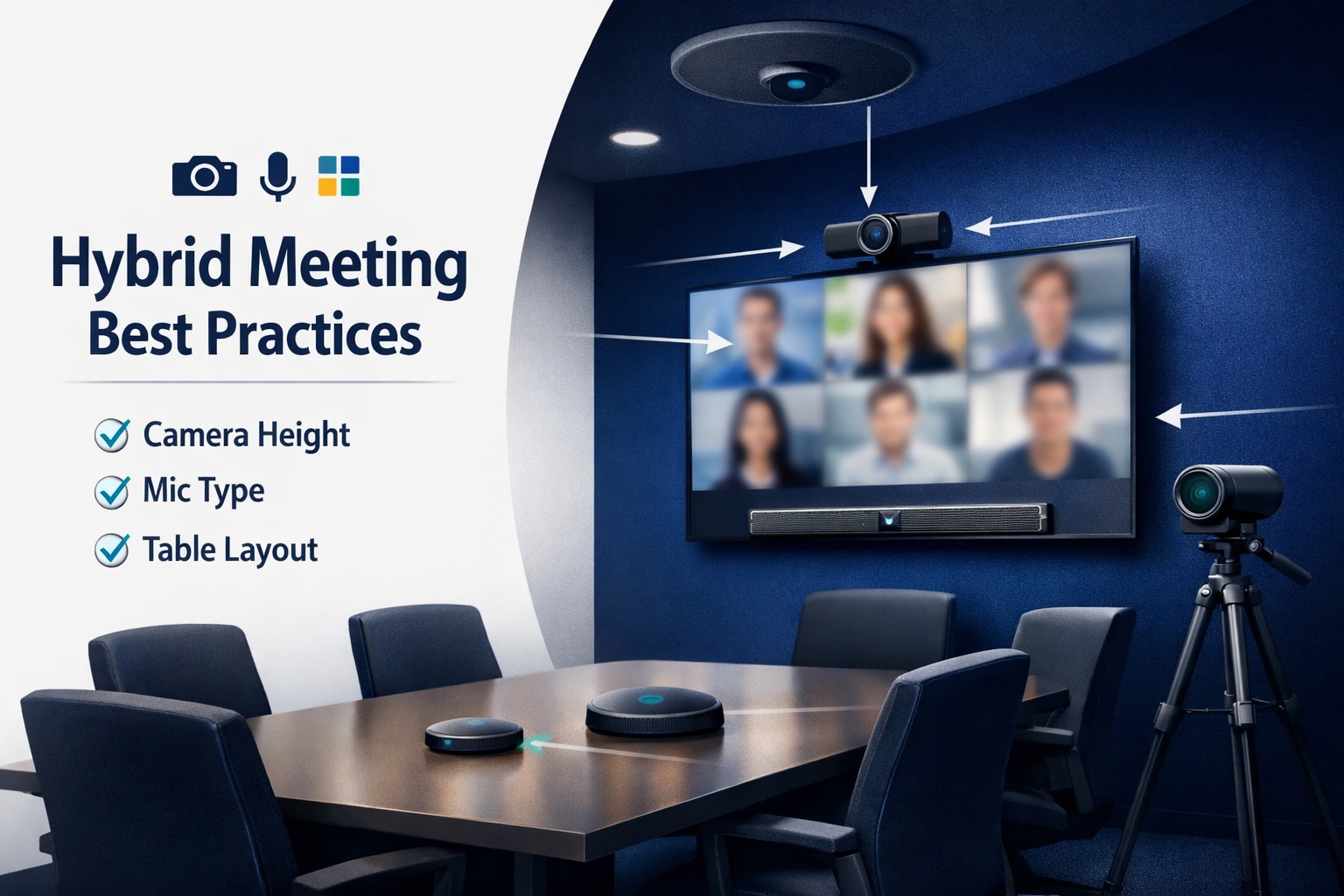
Your camera should capture faces at roughly eye level. That means mounting it at the same height as seated eye level—about 4 to 4.5 feet from the floor. When remote participants look at their screen, they should see the in-room people’s faces straight on, not looking up at their nostrils or down at their foreheads.
The camera needs to capture the entire meeting space. If you’ve got a 12-person conference table, your camera should show all 12 seats. Sounds obvious, but I’ve seen plenty of rooms where the camera only captures half the table because someone just stuck it in the corner without thinking about the field of view.
Ultra-wide-angle cameras work for smaller rooms. A 120-degree field of view can capture a whole huddle room from a single position. But be careful—too wide and you get that fisheye distortion that makes everything look weird. For larger rooms, you might need multiple cameras or a PTZ (pan-tilt-zoom) camera that can move to focus on whoever’s speaking.
Here’s what most people miss: the camera should be positioned near the display screen. When in-room participants look at remote people on the screen, they should be looking roughly toward the camera. This creates better eye contact and makes remote folks feel more included in the conversation. A camera mounted on the opposite wall from the screen means in-room people are always looking away from remote participants.
The Display Screen Problem Nobody Talks About
Your screen placement directly affects how well hybrid meetings work. Mount it too high and in-room participants crane their necks to see remote folks. Too low and it blocks sightlines across the table.
The ideal height puts the center of the screen at seated eye level—same principle as TV mounting in a home theater. For a conference room, that’s typically 42-48 inches from the floor to the screen’s center, depending on your table height and chair dimensions.
Screen size matters more in hybrid meetings than you’d think. Remote participants need to be large enough on screen that in-room people can read their facial expressions and body language. A 55-inch TV in a 20-person boardroom means remote faces are tiny. You need 75 inches minimum for larger rooms, and even that might not be enough.
Multiple screens solve some problems. One screen shows remote participants, another displays shared content. This prevents the constant switching between gallery view and screen share that makes remote people disappear. But multiple screens require more wall space and budget.
Position screens so everyone in the room can see them without turning completely around. An L-shaped conference table might need two screens—one for each leg of the L. Otherwise, half the room is always looking backward.
Microphone Selection: The Make-or-Break Element
You can have perfect camera placement and still ruin hybrid meetings with bad audio. People will tolerate mediocre video. They won’t tolerate bad sound.
The built-in microphone on your laptop or webcam doesn’t cut it for conference rooms. Period. These mics are designed for one person sitting 2 feet away, not for picking up voices from across a table.
Ceiling microphones work great for permanent installations. They pick up voices evenly across the room and stay out of the way visually. But they require professional installation and proper calibration. Stick them anywhere on the ceiling and you’ll get echo, weird volume levels, and pickup from the HVAC system.
Table microphones offer more flexibility. You can position them exactly where you need them and move them if your room layout changes. The downside? They take up table space and cables are visible (unless you’ve got a fancy table with built-in cable management).
Microphone arrays use beamforming technology to focus on whoever’s speaking while ignoring background noise. These are game-changers for hybrid meetings. Someone across the room speaks and the mic automatically picks them up clearly. The HVAC kicks on and the mic ignores it. But quality arrays cost money—think $500-$2000+ depending on the room size.
For smaller spaces, a good USB speakerphone can work. These sit in the center of the table and provide 360-degree pickup for 4-6 people. They’re not professional-grade, but they’re way better than laptop mics and much cheaper than ceiling arrays.
Here’s the key: you need enough microphone coverage for your entire meeting space. One mic in the center of a 20-foot conference table won’t pick up people at the ends clearly. You need multiple mics or an array system designed for the room size.
Room Layout: Making Space for Both Audiences
Traditional conference rooms were designed for everyone to sit around a table facing each other. That doesn’t work for hybrid meetings because half the participants aren’t in the room.
Your room layout needs to accommodate both the in-room participants and the camera/screen setup that connects to remote folks. This means rethinking how you arrange furniture.
The classroom layout works well for presentation-style hybrid meetings. In-room participants sit in rows facing the screen and camera. Everyone’s face is visible to remote participants, and everyone can see the screen easily. The downside? In-room collaboration suffers because people aren’t facing each other.
The U-shape layout balances collaboration and remote visibility. The table forms a U with the open end facing the screen and camera. In-room people can see each other for discussion, and remote folks get a clear view of everyone’s faces. This works great for 8-15 person meetings.
The boardroom layout (traditional long table) is tough for hybrid meetings. People sitting on the sides of the table are hard for the camera to capture. You either need multiple cameras or you need to limit seating to the ends of the table facing the camera. Neither is ideal.
Theater-style seating works for large hybrid meetings where most people are just listening. Rows of chairs facing a stage with cameras and screens. Remote participants see the speakers and presentations. In-room people see remote participants on large screens. But this doesn’t work for collaborative discussions.
Whatever layout you choose, leave space between the table and the screen/camera wall. People need room to move around, and the camera needs enough distance to capture everyone without being uncomfortably close.
For organizations building out dedicated spaces, understanding how professional conference room design integrates AV needs prevents costly mistakes that require redesigning the space later.
Lighting: The Detail That Changes Everything
Bad lighting ruins hybrid meetings more than people realize. The camera can be perfect, the mic can be professional-grade, but if the lighting is wrong, remote participants can’t see faces clearly.
Natural light is the enemy of video conferencing. Windows behind in-room participants create silhouettes. Windows behind the camera create glare on faces. You need window treatments—blinds, shades, or curtains—that you can close during video calls.
Overhead fluorescent lighting creates harsh shadows under eyes and chins. It’s not flattering and it makes it harder for remote folks to read facial expressions. LED panels with diffusers provide more even lighting that actually shows faces properly.
The goal is soft, even lighting that illuminates faces without creating harsh shadows. Professional studios use three-point lighting (key light, fill light, back light), but conference rooms don’t need to be that elaborate. Just avoid strong light sources behind people and ensure overhead lighting is bright enough and diffused enough to show faces clearly.
Adjustable lighting helps. Dimmers let you reduce overhead lights if they’re too harsh. Smart lighting systems can create scenes for different meeting types—”video conference mode” that optimizes for cameras, “presentation mode” that dims for screen visibility, “collaboration mode” that brightens everything for in-person work.
Some companies invest in dedicated video conferencing lighting—LED panels mounted near the camera that specifically illuminate participants’ faces. It sounds excessive until you see the difference in video quality. Remote participants can actually see expressions and read body language instead of squinting at shadowy faces.
Getting professional lighting and sound calibration done right makes a massive difference in meeting quality, especially for spaces that handle frequent hybrid sessions.
Audio Zones and Echo Management
Here’s something that screws up a lot of hybrid meetings: the microphone picks up sound from the speakers, creating that annoying echo or feedback loop. Remote Person A speaks, their voice comes out of the conference room speakers, the room mic picks it up, and Remote Person A hears their own voice echoed back with a delay.
Modern conferencing systems have echo cancellation built in, but it only works if you set things up correctly. The speakers and microphones need to be properly positioned and the system needs to be calibrated for your specific room.
Speaker placement matters for echo control. Speakers should be positioned away from microphones when possible. If you’re using ceiling mics, wall-mounted or under-table speakers work better than tabletop speakers sitting right next to the mics.
Acoustic treatment helps too. Hard surfaces—glass walls, bare floors, empty walls—create reflections that bounce audio around the room. That makes echo cancellation work harder and reduces overall audio quality. Acoustic panels, carpet, curtains, and furniture all help absorb sound and reduce echo.
Don’t go overboard though. You’re not building a recording studio. You just need enough sound absorption to prevent obvious echoes and keep the room from being too “live” (echoey). A few acoustic panels on the walls and some fabric in the room (curtains, upholstered chairs) usually does the trick.
Volume levels need calibration too. If the conference room speakers are too loud, they’ll overpower the microphones and create distortion. Too quiet and in-room participants can’t hear remote folks clearly. Professional calibration sets levels properly for your specific room size and acoustic properties.
Technology Integration: Making It Actually Work
You’ve got cameras, microphones, speakers, and screens. Now they all need to work together without requiring a PhD to operate.
All-in-one systems like Zoom Rooms, Microsoft Teams Rooms, or Google Meet hardware kits solve the integration problem. Everything’s designed to work together out of the box. You walk into the room, tap the screen, and start your meeting. No fiddling with cables or input switching.
The downside? You’re locked into that platform’s ecosystem. A Zoom Room is optimized for Zoom. It’ll work with other platforms but not as smoothly. If your organization uses multiple conferencing platforms, all-in-one solutions get complicated.
BYOD (Bring Your Own Device) setups give you more flexibility. Anyone can walk in, plug in their laptop, and use whatever platform they prefer. But this requires more cables, more connection points, and more things that can go wrong. Someone inevitably forgets the HDMI adapter or can’t get the room system to recognize their device.
Hybrid approaches work for many organizations. A dedicated room system for scheduled meetings, plus easy HDMI/USB connectivity for ad-hoc use. This gives you the reliability of an integrated system with the flexibility to accommodate different setups.
For companies standardizing on specific platforms, specialized installations make everything work better. Whether you’re setting up Zoom-optimized conference rooms, Microsoft Teams meeting spaces, Google Meet conference solutions, or Cisco Webex environments, platform-specific optimization prevents compatibility headaches.
Cable Management: The Unsexy Essential
Nothing screams “unprofessional” like cables running across the conference table or dangling from the ceiling. But cable management is about more than aesthetics—it’s about reliability and safety.
In-table cable management is the cleanest solution. Cables run through the table to connection points built into the surface. Power, HDMI, USB, network—everything’s accessible but hidden. The downside is cost and permanence. You can’t easily reconfigure the table once cables are run through it.
Floor boxes provide connectivity without running cables across the room. They sit flush with the floor and pop up when needed. Great for power and network connections, though they’re tripping hazards if not properly placed.
Cable raceways hide cables along walls and ceilings. They’re cheaper than in-wall runs and easier to modify, but they’re visible. Get decent-looking raceways that match your room aesthetic, not the cheap white plastic ones from the hardware store.
Wireless technology eliminates some cables. Wireless screen sharing, wireless microphones, wireless speakers—all reduce the cable mess. But wireless introduces its own issues: battery charging, interference, connection reliability. Use wireless strategically, not everywhere.
For permanent installations where you want everything clean and professional, getting proper AV wiring and cable management done during initial setup saves money compared to fixing messy installations later.
Network Requirements: The Foundation Everyone Forgets
Your hybrid meeting setup is only as good as your network. A 4K camera sending video to remote participants needs bandwidth. Multiple microphones sending audio streams need bandwidth. Screen sharing needs bandwidth. If your network can’t handle it, everything falls apart.
Wired connections beat Wi-Fi for conference room equipment every time. Hardwired cameras, microphones, and room systems are more reliable and don’t compete with other wireless devices for bandwidth. Run ethernet to every piece of permanent conference room equipment.
Network segmentation helps prevent conference room traffic from interfering with other business operations. Put video conferencing equipment on its own VLAN so a bandwidth-heavy video call doesn’t slow down someone trying to access the company database.
QoS (Quality of Service) settings prioritize video and audio traffic over less time-sensitive data. When network congestion happens, QoS ensures your video call stays smooth instead of freezing while someone downloads a large file.
Bandwidth requirements vary by platform and quality settings, but plan for at least 5-10 Mbps upload and download per conference room. If you’re doing 4K video or have multiple concurrent meetings, you need more. Test your network under load before you commit to a specific setup.
Different Room Types, Different Solutions
Not every conference room needs the same hybrid setup. A small huddle room has different requirements than a 50-person boardroom.
Huddle rooms (4-6 people) can get away with simpler setups. A wide-angle USB camera, a speakerphone, and a decent-sized TV. Total cost can stay under $2,000 if you’re smart about equipment selection. These small meeting spaces need smart design that maximizes limited square footage.
Standard conference rooms (8-15 people) need more sophisticated equipment. PTZ camera or multiple fixed cameras, ceiling or table microphone array, larger screen or dual screens, dedicated room control system. You’re looking at $5,000-$15,000 depending on quality and features.
Boardrooms (16-30 people) require professional-grade everything. Multiple cameras, extensive microphone coverage, multiple large screens, integrated control systems, professional lighting. Budget $20,000-$50,000+ for a proper boardroom setup. Executive leadership deserves boardroom AV that actually works without technical interruptions during important meetings.
Town hall spaces (30+ people) are essentially small auditoriums. Stage cameras, audience cameras, distributed microphones, projection or video wall, professional sound reinforcement. These spaces need large-scale AV solutions designed for one-to-many and many-to-many communication.
Divisible rooms add complexity—they’re large spaces that can split into smaller rooms with movable walls. Your AV system needs to work whether the space is open or divided. This requires careful planning of camera, microphone, and screen placement so everything works in both configurations. These flexible meeting environments require sophisticated control systems.
The Remote Participant Experience
Everything I’ve talked about so far focuses on the in-room setup. But hybrid meetings succeed or fail based on whether remote participants feel included.
Gallery view considerations matter. Remote people should see all in-room participants, not just whoever’s speaking. Speaker tracking cameras are cool technology but they can exclude quiet participants from the video feed. Sometimes a static wide shot that shows everyone beats a camera that’s constantly panning around.
Remote participant visibility in the room matters too. Don’t make remote folks small thumbnails on a screen in the corner. Give them prominent screen real estate so in-room participants actually look at them and remember they’re part of the meeting.
Speaking order management prevents in-room participants from dominating the conversation. Someone needs to actively monitor remote participant raised hands or chat messages and call on them. Otherwise, in-room people will just talk to each other and forget about the remote folks.
Shared content visibility needs to work for everyone. If someone’s sharing their screen, both in-room and remote participants need to see it clearly. This often means dual screens in the conference room—one for people, one for content.
For organizations trying to improve their overall meeting culture beyond just the technical setup, these proven tips for more productive video meetings address the human factors that technology alone can’t fix.
Platform-Specific Considerations
Different video conferencing platforms have different technical requirements and work better with certain setups.
Zoom has excellent camera and microphone support with intelligent speaker tracking and noise suppression. Their room systems integrate well but cost more than generic setups. Zoom also handles screen sharing smoothly across hybrid environments.
Microsoft Teams integrates deeply with Microsoft 365, which matters if your organization lives in Outlook and SharePoint. Teams Rooms hardware is reliable but you’re pretty locked into the Microsoft ecosystem. Together mode tries to address hybrid meeting challenges by placing everyone in a shared virtual space.
Google Meet is simpler and more lightweight, which can be a pro or con. Fewer features mean less to configure, but also fewer options for advanced hybrid setups. Meet hardware is competitively priced and works well for Google Workspace users.
Webex has strong enterprise features and reliability. Their codec technology handles poor network conditions better than some competitors. Webex Room devices are professional-grade but cost accordingly.
The platform you choose affects equipment compatibility, features available, and how smoothly everything works together. For organizations standardizing their entire conferencing infrastructure, understanding what makes a complete video conferencing system helps make informed decisions beyond just picking popular brand names.
Testing and Calibration
You can buy the best equipment, mount it perfectly, and still have terrible hybrid meetings if you don’t test and calibrate everything properly.
Camera positioning tests mean joining meetings as a remote participant and checking what the camera actually shows. Are faces clear? Can you see everyone? Are people cut off at weird angles? Adjust until the view works.
Microphone tests require speaking from different seats while someone remote listens. Can they hear from every position in the room? Are some seats quieter than others? Is there echo? Adjust mic positions or add more mics until coverage is even.
Lighting tests happen at different times of day. Morning sun through east windows creates different challenges than afternoon sun through west windows. Test at various times and adjust window treatments or lighting as needed.
Network stress tests mean running video calls at peak usage times to see if bandwidth holds up. Start a meeting, have people join, share screens, turn on gallery view with everyone’s camera. If things get choppy, you have network capacity issues to address.
Don’t just test once and call it done. Test after any room changes, furniture moves, or equipment updates. Audio and video quality can change based on surprisingly small room modifications.
Training and Adoption
The best hybrid setup in the world doesn’t matter if people don’t know how to use it or actively avoid using it because it seems complicated.
Simple operation is essential. If starting a meeting requires 10 steps and three different remotes, people won’t use the system properly. One-touch join should be the goal—walk in, press one button, meeting starts.
Clear instructions posted in the room help. A simple laminated card showing “How to start a meeting” with 3-4 steps and pictures. People will follow instructions if they’re right there and easy to read.
User training prevents most technical support calls. A 15-minute session showing people how to use the room system, how to troubleshoot common issues, and who to call if something’s really broken. Do this for new hires and whenever you update equipment.
Technical support needs to be responsive. When a hybrid meeting breaks, people are sitting in a conference room unable to work. That’s different from someone’s laptop having an issue at their desk. Conference room problems affect multiple people immediately and need fast resolution.
Common Mistakes to Avoid
I’ve seen these mistakes enough times to know they’re worth calling out specifically:
Mounting the camera on the table instead of at eye level. Every single time, it gives unflattering angles and doesn’t show people’s faces properly.
Using one microphone for a large room and expecting it to pick up everyone. Physics doesn’t work that way. You need coverage for the entire space.
Putting the screen opposite the camera so in-room people are always looking away from remote participants. Screen and camera should be in the same direction.
Ignoring lighting until after everything else is installed, then realizing you can’t actually see anyone on camera.
Forgetting about network bandwidth and wondering why video quality is terrible when 12 people are trying to stream 1080p simultaneously.
Not testing from the remote participant perspective and missing obvious issues that only become apparent when you’re actually on the other end of the video call.
Buying cheap equipment to save money upfront, then spending more on support calls and frustrated employees than you would’ve spent on proper equipment.
Security Considerations
Hybrid meeting rooms raise security issues that fully remote or fully in-person meetings don’t face.
Camera and microphone security means ensuring devices aren’t accessible for unauthorized use. Can someone remotely access your conference room camera? Are there physical privacy shutters or disconnect switches for when the room isn’t in use?
Content security matters when sensitive information gets discussed in hybrid meetings. Is the video stream encrypted? Are recordings stored securely? Who has access to meeting recordings? For organizations handling sensitive information, understanding why encrypted video calls matter and how to implement them properly isn’t optional.
Network security means segmenting conference room equipment from other systems and ensuring firmware stays updated. Vulnerable AV equipment can be an entry point for network attacks.
Physical security prevents unauthorized people from joining in-room portions of hybrid meetings. Door locks, badge readers, and calendar integration showing who booked the room all help.
The combination of these security practices, along with video conferencing security best practices, protects both the technical infrastructure and the confidential information discussed in meetings.
Accessibility Matters
Hybrid meeting rooms should work for everyone, including people with disabilities.
Hearing accessibility means having systems compatible with hearing aids and cochlear implants. Induction loop systems help people with hearing devices. Live captioning services make meetings accessible for deaf and hard-of-hearing participants both in-room and remote.
Visual accessibility means large, high-contrast screens visible from all seating positions. Remote participants who are visually impaired need screen readers that work with your conferencing platform.
Mobility accessibility means wheelchair-accessible table heights, clear pathways without cables across the floor, and controls positioned within reach of seated users.
Design rooms to be inclusive from the start. Retrofitting accessibility is harder and more expensive than building it in initially.
Making the Investment Worth It
Hybrid meeting rooms aren’t cheap. Depending on room size and quality expectations, you might spend anywhere from $2,000 for a basic huddle room to $50,000+ for a professional boardroom.
Is it worth it? That depends on how often you use hybrid meetings and how important meeting quality is to your business.
If you’re doing daily hybrid meetings with remote teams, clients, or partners, the investment pays off in improved communication, better collaboration, and less meeting frustration. Employees stop wasting time fighting with technology and actually focus on the meeting content.
If you rarely do hybrid meetings and most communication happens either fully in-person or fully remote, you probably don’t need premium conference room AV. A decent camera and speakerphone might be enough.
For many organizations, getting complete video conferencing equipment and setup done professionally prevents the false economy of buying cheap equipment that doesn’t work, getting frustrated, and eventually paying to do it right anyway.
The Future of Hybrid Work
Hybrid meetings aren’t going away. If anything, they’re becoming more common as organizations embrace flexible work policies that allow some people to work remotely while others come into the office.
Technology keeps improving. AI-powered cameras that frame meetings intelligently. Microphones that isolate voices better. Software that makes remote participants feel more present. Room systems that are easier to use and more reliable.
But the fundamentals won’t change. Remote participants still need to see and hear what’s happening in the room. In-room participants still need to see and hear remote folks. The technology just gets better at making that happen.
Organizations that invest in proper hybrid meeting infrastructure now are setting themselves up for the future of work. Those that try to make do with inadequate setups are creating frustration that’ll drive people to avoid collaboration and prefer async communication over real-time meetings.
Getting Started
If you’re looking at your conference rooms and realizing your hybrid setup isn’t working, start with an audit. Test your current setup from both in-room and remote perspectives. Identify what’s not working. Make a list of issues ranked by impact.
Then prioritize. Maybe your camera position is terrible but your audio is fine. Fix the camera first. Maybe your network can’t handle the load. Address bandwidth before buying fancy new cameras.
You don’t have to fix everything at once. But you do need a plan that addresses the biggest problems first and works toward a setup that actually serves hybrid meetings properly.
For organizations ready to invest in proper solutions, working with experienced video conferencing professionals who’ve built hundreds of these rooms prevents the trial-and-error approach that wastes time and money.
Hybrid meetings are here to stay. Whether they’re productive or frustrating depends entirely on whether you set up your rooms to actually support them. Get the camera placement right, choose mics that actually cover your space, arrange the room to work for both audiences, and you’ll have meetings that work instead of meetings that people dread.
That’s the difference between hybrid meetings that bring people together and hybrid meetings that remind everyone why they hate video calls. The choice is yours.