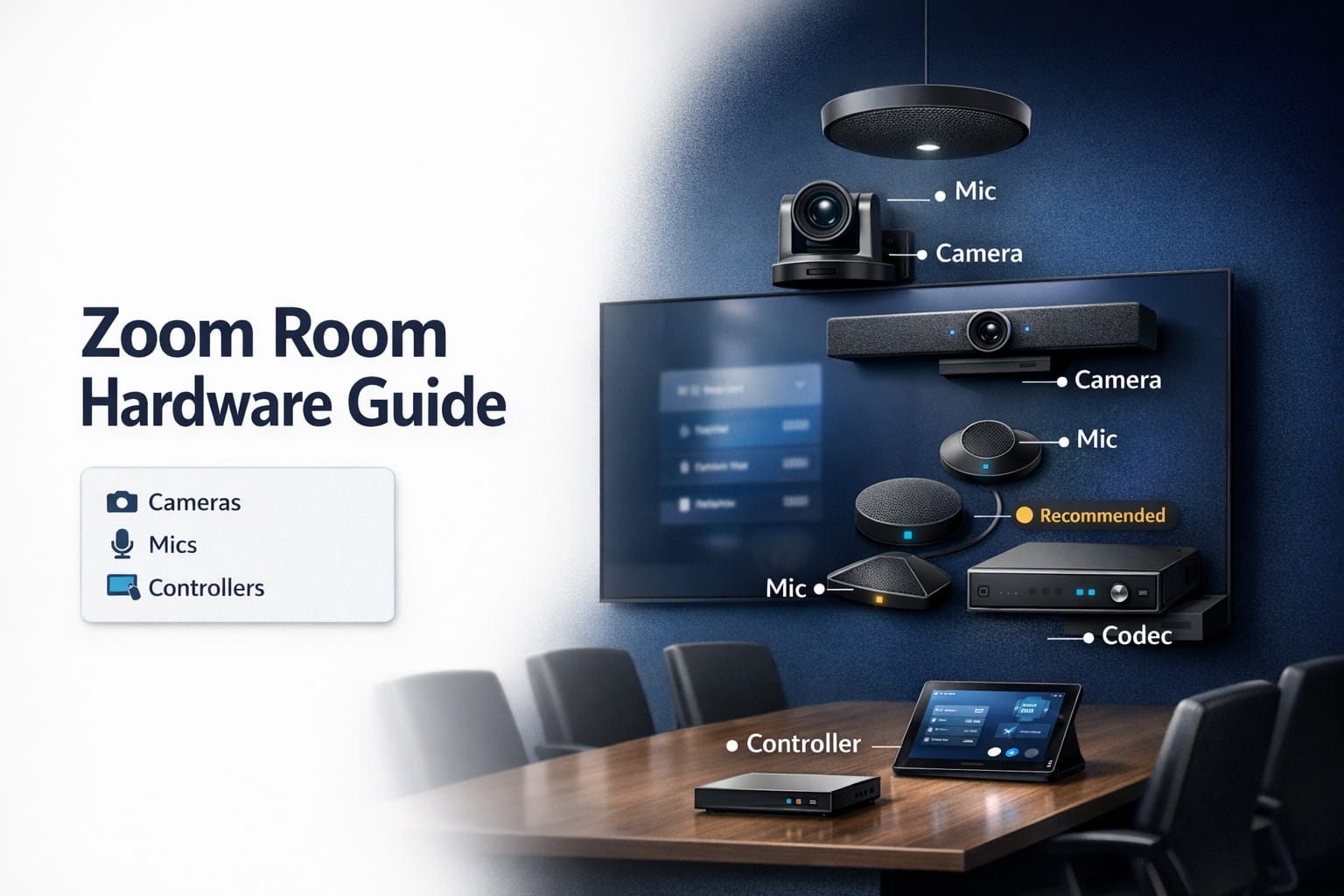
So you’re ready to build a Zoom Room. Great. Now comes the part where you realize there are about 500 different camera options, 300 microphone choices, and everyone swears by different equipment.
Here’s what I’ve learned after setting up dozens of these rooms: the “best” hardware doesn’t exist. What exists is the right hardware for your specific room size, budget, and use case. A camera that’s perfect for an 8-person huddle room will make people look like ants in a 20-person boardroom.
This guide cuts through the marketing noise and tells you what actually works. I’m covering cameras, microphones, speakers, controllers, and the computing hardware that ties it all together. Plus actual model recommendations based on room size.
Let’s get specific.
Why Hardware Choices Matter More Than You Think
Before we dive into models, let’s talk about why this matters.
Bad hardware makes Zoom Rooms that people avoid using. I’ve seen $40,000 conference rooms sit empty because the camera placement was wrong or the microphone couldn’t pick up half the table. Meanwhile, the conference room down the hall with $8,000 worth of well-chosen gear gets booked solid.
The difference isn’t just price. It’s matching the right equipment to the room’s actual needs.
Small rooms need wide-angle cameras positioned close. Large rooms need cameras with serious zoom capability. Rectangular tables need different mic placement than round tables. It all matters.
And here’s the kicker: once everything’s installed and your walls are patched, swapping equipment is expensive and annoying. Get it right the first time.
Cameras: Your Visual Front Line
The camera is what remote participants see. Get this wrong and nothing else matters.
What Actually Makes a Good Conference Camera
Resolution is table stakes now. Anything less than 1080p looks fuzzy. 4K is becoming standard for medium and large rooms.
But resolution isn’t everything. Field of view matters more than most people realize. A 90-degree field of view works great for small rooms. Larger spaces need 120 degrees or wider to capture everyone without making people on the edges look distorted.
Auto-framing technology—cameras that detect people and adjust the frame automatically—is genuinely useful. When someone walks into the room late, the camera reframes to include them. When people leave, it zooms in on who remains. It feels natural and prevents that awkward “can you see me?” question.
Small Room Cameras (4-6 People)
For huddle rooms and small conference spaces, you want something compact that doesn’t dominate the room visually.
Logitech Rally Bar Mini is the current sweet spot. It’s an all-in-one soundbar-style unit with a 4K camera, built-in speakers, and microphone array. Field of view hits 113 degrees, which captures most small rooms perfectly. AI-driven auto-framing actually works. Around $2,000-$2,500.
Poly Studio is the budget alternative at around $1,300-$1,500. Also all-in-one with camera, mics, and speaker. Quality isn’t quite Rally Bar Mini level, but it’s solid for the price. Good choice for companies outfitting multiple small rooms and watching costs.
Logitech MeetUp is the older option that’s still hanging around. Still works fine, priced around $900-$1,200 now. If you’re on a tight budget and can find one, it’s adequate. Just know you’re buying last-generation tech.
For small meeting spaces designed around quick collaboration, these all-in-one units simplify everything. One cable to the computer, and you’re done.
Medium Room Cameras (8-14 People)
Medium rooms need more serious hardware. You’re capturing a bigger space with more people at varying distances.
Logitech Rally Camera remains the gold standard. Modular system where camera, mics, and speakers are separate components. 4K image quality with 15x zoom. Exceptional low-light performance. Auto-framing tracks speakers. It’s not cheap—system pricing starts around $3,500-$4,500 depending on configuration—but it delivers.
Poly Studio X50 is the strong alternative. All-in-one bar style but sized for bigger rooms. Dual camera system with AI that follows speakers. Around $2,800-$3,200. Good middle ground between price and performance.
AVer CAM520 Pro2 is worth mentioning for budget-conscious buyers. Solid 1080p camera with 12x zoom for under $1,000. It’s not cutting-edge, but it works reliably in straightforward medium-sized rooms.
Large Room Cameras (15+ People)
Big rooms need cameras that can actually see to the back row without making people look tiny.
Logitech Rally Plus extends the Rally system for larger spaces with additional mic pods and speaker coverage. You’re looking at $5,000-$7,000 for a complete setup, but it handles rooms most other systems can’t touch.
Poly Eagle Eye Director II is designed specifically for large rooms with automatic speaker tracking using multiple cameras. Premium pricing (think $6,000+), but the tracking technology is genuinely impressive for executive boardroom installations.
PTZ-Pros cameras (various models) offer traditional pan-tilt-zoom functionality controlled either manually or automatically. Prices vary wildly ($2,000-$10,000+) depending on specs. Good for unique room layouts where fixed cameras don’t work.
For spaces like town halls and large presentation rooms, you might need multiple cameras feeding into a single Zoom Room. This requires switchers and more complex setups, but it solves the problem of capturing both speakers and audience.
Microphones: The Audio Reality Check
Here’s an uncomfortable truth: bad audio kills meetings faster than bad video. People will tolerate grainy video. Nobody tolerates echo, garbled speech, or the “sorry, can you repeat that?” loop.
Understanding Microphone Coverage
Conference room mics work on pickup patterns. Most use array technology—multiple microphone elements working together to focus on voices while rejecting background noise.
Coverage distance matters. A mic rated for 12-foot pickup needs to actually be within 12 feet of speakers. Put it 18 feet away and people sound distant and unclear.
For rectangular tables, you need coverage along the entire length. Round tables are easier—one good mic in the center often works.
Built-In vs. Dedicated Microphones
Those all-in-one camera-speaker-mic units I mentioned? Their microphones are pretty good for small rooms. Rally Bar Mini and Poly Studio have solid mic arrays that handle 4-6 people well.
But for medium and large rooms, dedicated microphones beat built-in mics every time. They position closer to speakers, offer better pickup patterns, and eliminate the compromises of trying to cram everything into one device.
Microphone Recommendations by Room Size
Small rooms: Built-in mics from Logitech Rally Bar Mini or Poly Studio handle this fine. Don’t overthink it.
Medium rooms:
Logitech Rally Mic Pod (usually 1-2 pods depending on table size) integrates with the Rally camera system. Each pod covers about 15 feet radius. Around $400-$500 per pod.
Shure MXA310 table mic is a serious upgrade. Steerable coverage areas you can configure. Exceptional audio quality. Around $1,500-$1,800. Worth it for rooms where audio quality really matters.
Biamp Parlé TCM-X ceiling mic is perfect if you can’t have table mics. Ceiling-mounted with configurable coverage zones. Around $1,200-$1,400.
Large rooms:
You’re probably looking at multiple microphone zones. Each seating area needs coverage.
Shure MXA910 ceiling array with beamforming technology is the premium choice. You can configure up to eight lobes pointing at different seating zones. Around $2,500-$3,000 per array.
Sennheiser TeamConnect Ceiling 2 offers similar capabilities at slightly lower price points (around $1,800-$2,200).
ClearOne BMA CT ceiling mics are the budget option for large spaces, around $800-$1,000. Less sophisticated than Shure or Sennheiser but functional.
Don’t forget: multiple mics need proper audio calibration and sound tuning to avoid echo and feedback. This is where professional installation really pays off.
Speakers: Don’t Ignore Them
Speakers get overlooked, but they’re critical. Remote participants need to be clearly audible to in-room people.
Speaker Placement Strategy
Speakers should be near the display so it feels like remote participants are speaking from the screen. Helps with natural conversation flow.
Volume needs to fill the room without distortion or echo. Test at realistic conversation levels, not whisper-quiet settings.
Speaker Options
Small rooms: Built-in speakers from all-in-one units work fine. Rally Bar Mini and Poly Studio both have adequate speaker systems for huddle rooms.
Medium rooms:
Logitech Rally Speaker (usually a pair) designed to work with Rally camera systems. Positioned on either side of the main display. Around $800-$1,000 for a pair.
Poly Soundstructure ceiling speakers if you want invisible audio. Around $600-$800 per speaker.
Large rooms:
You might need 4+ speakers properly positioned throughout the space. This gets into more complex audio system design territory.
QSC ceiling speakers are commercial-grade options that scale well. Pricing varies by model ($300-$800 each) and you’ll need an amplifier.
Biamp audio systems offer integrated solutions for large spaces with DSP processing to eliminate echo and manage complex audio routing.
For really large spaces like divisible conference rooms, you need zone-based audio that can reconfigure as the room splits or combines.
Controllers: The User Interface
This is what people actually touch. If it’s confusing, your Zoom Room fails regardless of how good the camera is.
What Makes a Good Controller
Simple, obvious, and foolproof. Those are the requirements.
People walking into a conference room shouldn’t need training to start a meeting. Tap the screen, join the call. That’s it.
Controller Options
Logitech Tap is the current leader. 10.1-inch touchscreen with a clean, intuitive interface. Mounts on a table stand or wall. Around $1,000-$1,200.
It’s basically an iPad running Zoom Rooms software. Big buttons. Clear labels. Impossible to screw up. Works with Logitech’s full ecosystem but also compatible with non-Logitech hardware.
Poly TC8 is the alternative. Similar concept, slightly different interface. Around $1,000-$1,100. Some people prefer its layout. Both are good—choose whichever interface makes more sense to you.
iPad + Zoom Rooms app is the DIY option. Just an iPad running the Zoom Rooms controller app. Cheaper if you already have iPads lying around. Less polished than purpose-built controllers but totally functional.
Crestron or Extron control systems are for high-end installations where you’re integrating room automation. Lights dim, shades close, display powers on, all triggered from one interface. Way more expensive ($2,000-$5,000+ just for the controller) and usually overkill unless you’re outfitting executive spaces.
Scheduling Displays
Separate from the controller, many rooms add a scheduling display outside the door showing room availability and upcoming meetings. These sync with your calendar system.
Joan scheduling displays are sleek e-ink screens. Around $400-$600 depending on size.
Robin scheduling panels offer similar functionality with more integration options. Around $500-$700.
Not essential, but they prevent the awkward situation where people walk in on an occupied room or can’t find an available space.
Computing Hardware: The Brains
Something has to run the Zoom Rooms software and connect all this hardware. You’ve got options.
Dedicated Zoom Rooms Appliances
Logitech Tap with compute module bundles the controller with an Intel NUC-based computer running Windows. Everything you need in one package. Around $2,500-$3,000 for the bundle.
Lenovo ThinkSmart Core is another all-in-one compute solution designed for Zoom Rooms. Around $1,800-$2,200.
These appliances are literally plug-and-play. Cable management is cleaner since the computer integrates with the controller.
DIY Computing Options
Mac Mini is the classic choice. Reliable, quiet, small footprint. Around $600-$800 depending on specs. Make sure you get enough RAM (16GB minimum) and storage.
Intel NUC (Next Unit of Computing) is the Windows alternative. Small form factor PC that tucks behind a display or under a table. Around $500-$900 depending on configuration.
HP or Dell mini PCs designed for commercial use are solid choices. Built for 24/7 operation, which matters in conference rooms. Around $600-$1,000.
Whatever you choose, make sure it meets Zoom’s recommended specs. Underpowered computers create laggy, frustrating experiences.
Network Connection
Hardwire your Zoom Room computer. Don’t rely on WiFi.
Yes, WiFi works. But hardwired Ethernet is more reliable, more consistent, and eliminates a potential point of failure. When your CEO’s presenting to the board, you want zero chance of WiFi hiccups.
Proper cable management and structured wiring keeps everything looking professional while ensuring solid connectivity.
Display Considerations
You need something to show the video on. Displays aren’t technically “Zoom Room hardware” but they’re essential to the system.
Sizing Your Display
Basic rule: for every foot of viewing distance, you want at least 1.5-2 inches of screen diagonal.
Small room with 6-foot max viewing distance? 55-inch display works.
Medium room with 10-foot viewing distance? 65-75 inches.
Large room with 15-20 foot viewing distance? 75-86 inches, or consider dual displays.
Single Display vs. Dual Display
Dual displays let you show video on one screen and content sharing on another. Legitimately useful for rooms where presentations and discussions happen simultaneously.
Requires more wall space, more money, and slightly more complex setup. But for professional video conferencing installations where functionality matters, it’s often worth it.
Bundle Recommendations by Room Size and Budget
Let’s get practical. Here’s what I’d actually buy for different scenarios.
Budget Small Room ($2,500-$3,500)
- Camera/Mic/Speaker: Poly Studio ($1,400)
- Controller: iPad with Zoom Rooms app ($500)
- Computer: Mac Mini M2 base model ($600)
- Display: 55″ commercial-grade TV ($600)
- Cables and mounting: $400
Gets you a functional room without breaking the bank. Not fancy, but it works.
Quality Small Room ($4,500-$6,000)
- Camera/Mic/Speaker: Logitech Rally Bar Mini ($2,400)
- Controller: Logitech Tap ($1,200)
- Computer: Integrated with Tap ($800)
- Display: 65″ 4K display ($800)
- Cables and mounting: $500
This is the sweet spot for small rooms. Everything integrates cleanly, looks professional, works reliably.
Medium Room Standard ($8,000-$12,000)
- Camera: Logitech Rally ($2,000)
- Microphones: 2x Rally Mic Pods ($900)
- Speakers: Rally Speaker pair ($900)
- Controller: Logitech Tap with compute ($2,800)
- Display: 75″ 4K commercial display ($1,500)
- Cabling and installation: $2,000+
This setup handles 8-12 people comfortably with good audio coverage and video quality.
Premium Medium/Large Room ($15,000-$25,000)
- Camera: Logitech Rally Plus system ($4,500)
- Microphones: Shure MXA310 or ceiling array ($3,000)
- Speakers: Biamp ceiling speakers ($2,000)
- Controller: Logitech Tap + compute ($2,800)
- Displays: Dual 75″ displays ($3,000)
- Professional installation: $4,000-$8,000
For boardrooms and important spaces where quality really matters. This is conference room AV equipment that’ll impress clients and make remote meetings actually pleasant.
What About Platform Compatibility?
Everything I’ve recommended works with Zoom Rooms. But what if you’re also using Teams, Meet, or Webex?
Good news: most modern conference hardware is platform-agnostic. The same camera, mic, and speaker setup works across platforms. You’re just changing which software the computer runs.
Microsoft Teams Rooms can use Logitech Rally hardware. Google Meet hardware kits work with the same cameras. Webex room systems are similar.
The main difference is the controller and licensing. But the expensive AV gear—cameras, mics, speakers—transfers between platforms if you switch later.
This matters for future-proofing. Spend $10,000 on quality hardware and it works regardless of which platform your company prefers in three years.
Installation: DIY or Professional?
You can absolutely install this stuff yourself if you’re technical and patient. Most hardware is USB plug-and-play.
But professional installation is worth considering for a few reasons:
Mounting and positioning: Pros know optimal camera angles, mic placement, and speaker positioning that you’d learn through trial and error.
Cable management: Making everything look clean isn’t just cosmetic—it affects reliability and maintenance.
Configuration and calibration: Audio calibration, camera framing, and controller setup benefit from experience.
Troubleshooting: When something inevitably doesn’t work right, pros have seen it before.
For small rooms with all-in-one hardware? DIY is totally reasonable. For larger rooms with multiple components, professional conference room installation services usually pay for themselves through better results and saved time.
Maintenance and Longevity
Hardware doesn’t last forever, but good gear lasts longer.
Firmware updates: Keep everything current. Most manufacturers push updates quarterly. They fix bugs and add features.
Cleaning: Wipe camera lenses monthly. Dust in mics affects performance. It’s basic stuff that actually matters.
Expected lifespan: Quality conference cameras last 5-7 years. Controllers and computers might need replacing every 4-5 years as software demands increase. Displays last 7-10 years typically.
Budget for eventual replacement. That $12,000 medium room setup? Plan to refresh in 5-6 years. It’s a business expense that needs lifecycle planning.
Making the Final Decision
Start with your room size and budget. Those two factors narrow choices dramatically.
Then think about your use case. Is this for quick daily standups or all-day client presentations? Budget rooms or executive spaces? Simple meetings or hybrid collaboration with complex needs?
Match hardware to actual requirements, not aspirations. You don’t need Shure ceiling arrays in a 6-person huddle room. But you also shouldn’t put a $900 webcam in a 20-person boardroom.
Talk to vendors who specialize in this stuff. Show them your room, explain your needs, get recommendations. Video conferencing specialists who do this daily have insights you won’t find in spec sheets.
And remember: hardware is just equipment. What matters is creating spaces where people actually want to meet and where remote participants feel included rather than like second-class attendees. The right hardware makes that possible.