
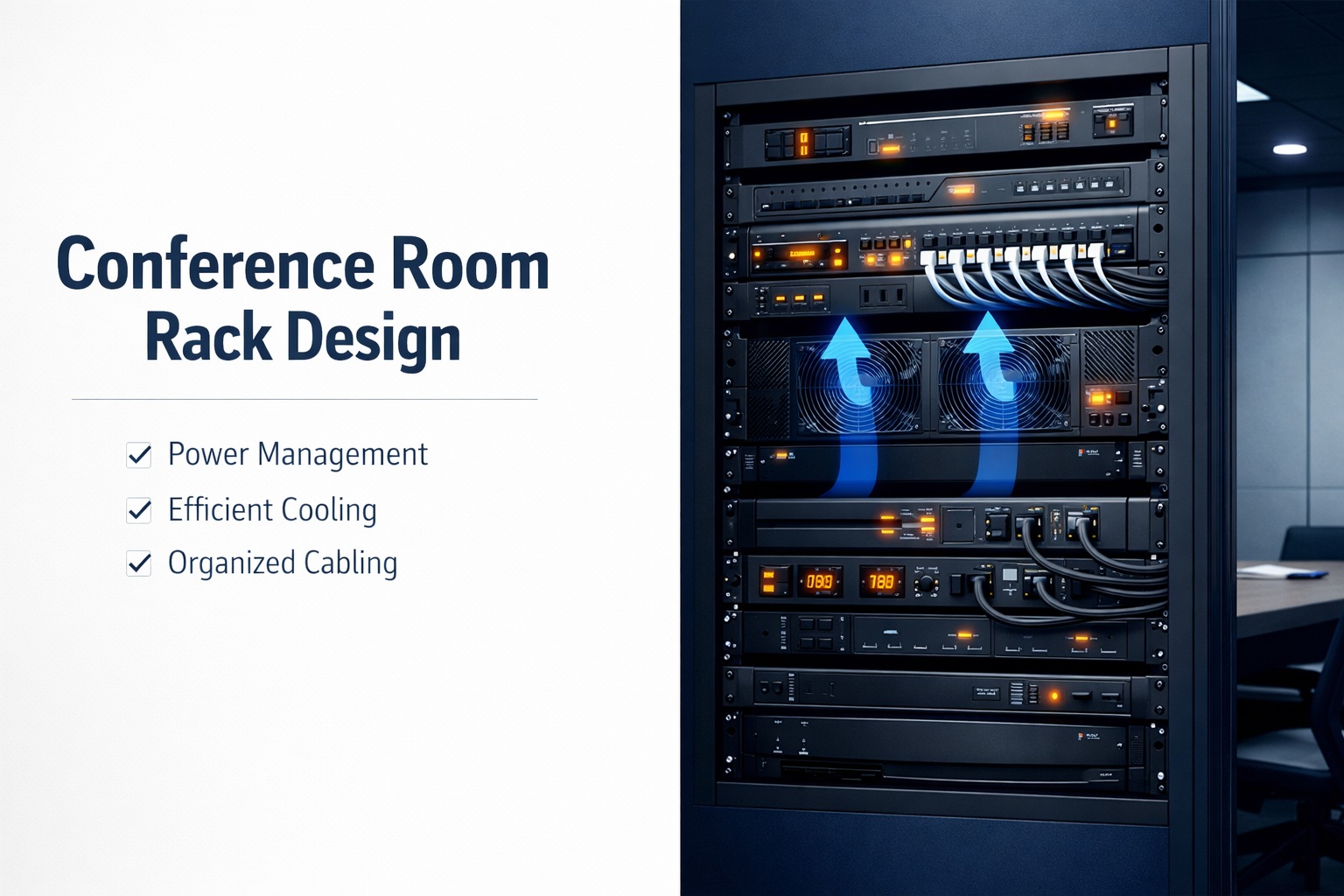
You’ve spec’d out a great conference room. Quality cameras, microphones, video codec, displays—everything arrives and gets racked. Then problems start. Equipment overheats. Power strips are maxed out. Nobody knows which cable goes where. Troubleshooting takes hours because nothing’s labeled.
Here’s what people don’t realize until they’ve built a few conference rooms: the equipment rack is the nervous system of your AV setup. Get it wrong and even the best equipment underperforms. Get it right and everything just works—for years.
I’ve designed hundreds of conference room racks. The difference between good and bad rack design is massive. Good racks are organized, properly powered, adequately cooled, and completely labeled. Bad racks are fire hazards with cables everywhere, equipment failing from heat, and mystery connections nobody can trace.
This guide covers exactly how to design conference room equipment racks properly—rack sizing and selection, power distribution, cooling and ventilation, cable management, labeling strategies, and the mistakes that create problems down the road.
Let’s build racks that support reliable conferencing instead of sabotaging it.
Rack Sizing and Selection
Before buying equipment, choose the right rack.
Understanding Rack Units (U)
1U = 1.75 inches: Standard unit of measurement for rack equipment.
Equipment varies: Some devices are 1U, others 2U, occasionally 3U or more.
Count your equipment: List everything going in rack, note U height of each.
Example inventory:
- Video codec: 1U
- Network switch: 1U
- Power conditioner: 1U
- Patch panel: 1U
- Cable management: 1U (multiple)
- Blank panels: Variable
Total: Typical small conference room = 6-10U equipment.
Rack Height Selection
Common sizes: 8U, 12U, 20U, 42U wall-mount or floor-standing.
Small huddle rooms: 8-12U wall-mount adequate.
Medium conference rooms: 12-20U wall-mount typical.
Large boardrooms: 20U+ floor-standing for extensive equipment.
Rule of thumb: Buy rack with 30-40% more space than current equipment needs. Future expansion is inevitable.
When planning complete Zoom Room installations, rack sizing accounts for all components plus growth.
Wall-Mount vs Floor-Standing
Wall-mount racks:
- Space-efficient
- Keeps equipment off floor
- Easier to access back
- Limited weight capacity
- Good for small-medium rooms
Floor-standing racks:
- Higher capacity
- Better weight distribution
- More accessories available
- Takes floor space
- Better for large installations
Most conference rooms: Wall-mount works fine. Floor-standing for serious boardrooms or equipment closets.
Rack Depth
Standard: 19 inches wide (industry standard).
Depth varies: 12″, 18″, 24″, 30″ common.
AV equipment: Usually shallow (12-18″ deep adequate).
Network equipment: Often deeper (24″+ needed for servers).
Check equipment specs: Measure deepest device, add 3-4 inches for cable clearance.
Power Distribution Design
Power is critical. Don’t skimp or improvise.
Never Use Regular Power Strips
Why not: Not designed for rack mounting, no surge protection, safety hazard.
What to use instead: Rack-mounted PDUs (Power Distribution Units).
PDU advantages:
- Designed for racks
- Proper surge protection
- Better build quality
- Mounting options
- Circuit breaker protection
Cost: $100-$500 depending on features. Worth every penny.
PDU Types and Features
Basic PDUs: Power strip in rack-mount form. Surge protection, multiple outlets.
Metered PDUs: Show power consumption. Useful for monitoring load.
Switched PDUs: Individual outlet control. Turn outlets on/off remotely.
Smart PDUs: Network management, scheduling, alerts, remote control.
For conference rooms: Basic or metered adequate. Smart PDUs for critical installations or remote locations.
Power Capacity Planning
Calculate total draw: Add up all equipment wattage.
Example calculation:
- Video codec: 50W
- Network switch: 25W
- Display (if powered from rack): 150W
- Amplifier: 100W
- Miscellaneous: 50W
- Total: 375W
Circuit capacity: Standard 15A circuit = 1,800W @ 120V. 20A circuit = 2,400W.
Headroom: Don’t exceed 80% of circuit capacity. Leaves safety margin and room for additions.
Dedicated circuits: Conference room racks should have dedicated circuits. Don’t share with general office power.
Redundant Power Considerations
Critical rooms: Executive boardrooms might need power redundancy.
Dual PDUs: Two PDUs on separate circuits. Equipment with dual power supplies connects to both.
UPS backup: Uninterruptible power supply keeps equipment running during outages.
Cost vs benefit: Redundancy is expensive. Reserve for truly critical spaces where downtime isn’t acceptable.
Proper Grounding
Ground loops cause problems: 60Hz hum in audio, video interference.
Single-point ground: All equipment should ground to same point.
Star grounding: Ideal configuration. All grounds run to central point, none interconnected.
Isolated ground circuits: For sensitive AV equipment in electrically noisy environments.
Consult electrician: Proper grounding requires electrical expertise.
Cooling and Ventilation
Heat kills electronics. Plan for it.
Understanding Heat Generation
All equipment generates heat: Some more than others.
High heat equipment:
- Amplifiers
- Video processors
- Network switches (especially PoE)
- Compute devices under load
Cumulative effect: Multiple devices in enclosed rack = oven.
Temperature monitoring: Some smart PDUs include temperature sensors.
Rack Ventilation Strategies
Perforated doors: Front and rear doors should be ventilated (not solid).
Perforation percentage: 60%+ open area ideal. More airflow = better cooling.
Vented side panels: If rack has sides, ensure they’re perforated or remove panels.
Avoid: Solid doors on front or back. Creates heat buildup.
Equipment Placement for Cooling
Heat rises: Place heat-generating equipment at bottom of rack when possible.
Spacing: Leave 1U blank panel between high-heat devices. Allows air circulation.
Don’t: Pack equipment tightly with no gaps. Creates hot spots.
Airflow path: Cool air enters front, heated air exits rear. Don’t block this path.
Active Cooling Solutions
When needed: Enclosed racks, high heat loads, poor room ventilation.
Rack fans: Mount in top of rack. Pulls hot air out.
Configuration: Exhaust fan at top rear. Draws air through rack.
Fan size: 1U or 2U rack-mount fans. CFM rating should match heat load.
Thermostatic control: Fans activate based on temperature. Quieter when cool.
Noise consideration: Fans make noise. Might not be acceptable in conference rooms during meetings.
Temperature Monitoring
Why monitor: Catch cooling problems before equipment fails.
Methods:
- Smart PDU with temperature sensor
- Standalone temperature sensors
- Network-connected monitoring
- Visual indicators (some equipment shows temp)
Alert thresholds: Set alerts for 85°F+. Equipment specs usually rate to 95-104°F but sustained heat shortens lifespan.
Logging: Track temperature over time. Identifies trends and seasonal variations.
Cable Management Strategy
Organized cables aren’t just aesthetic—they’re functional.
Vertical Cable Management
Purpose: Organize cables running up/down sides of rack.
Types:
- Single-sided managers (D-rings)
- Dual-sided managers (fingers or hoops)
- Zero-U managers (don’t consume rack space)
Placement: Both sides of rack. Cables route through managers, not behind equipment.
Capacity: Choose managers sized for your cable count. Overstuffed managers don’t close.
Horizontal Cable Management
Purpose: Organize cables between equipment.
Types:
- 1U brush panels
- 1U D-ring panels
- 2U management panels
Placement: Between logical equipment groups. Every 4-6U typical.
Usage: Cables route through panel before connecting to device above/below.
Patch Panel Strategy
What they are: Central termination point for all cables entering rack.
Why use them:
- Cleaner organization
- Easier troubleshooting
- Simpler changes (patch cable vs recabling)
- Professional appearance
Types:
- Keystone patch panels (modular)
- Punch-down patch panels (fixed)
- Fiber patch panels (if using fiber)
Placement: Usually near top or bottom of rack. All incoming cables terminate here.
Understanding professional cable management techniques shows the difference between amateur and professional installations.
Cable Routing Best Practices
Separate power from data: Power cables on one side, data cables on other. Prevents interference.
Service loops: Leave extra cable length coiled in vertical managers. Allows equipment removal.
Avoid crossing: Keep cable paths simple. Minimize crossing and tangles.
Tie properly: Velcro ties, not zip ties. Need to add/remove cables over time.
Bundle logically: Group related cables. All camera cables together, all network together, etc.
Rear Access Considerations
You’ll need access: Troubleshooting, changes, additions all require reaching rack back.
Swing-out racks: Wall-mount racks that swing away from wall. Much easier access.
Space behind rack: If fixed-mount, leave 18-24″ between rack and wall.
Cable access: How do cables enter rack? Top, bottom, rear? Plan the path.
Labeling System Design
Future you will thank past you for proper labeling.
Equipment Labeling
Every device labeled: Front panel label visible without opening rack.
Label content:
- Device name/function
- Model number
- IP address (for network devices)
- Installation date
Example: “Video Codec – Poly X50 – 10.1.5.23 – Installed 3/2024”
Label makers: Brother P-Touch or similar. Professional appearance, doesn’t fade.
Placement: On front bezel or on blank panel in front of device.
Cable Labeling Standards
Both ends labeled: At equipment end and at patch panel end.
Labeling convention:
- Room identifier
- Device name
- Port/connection type
- Cable number
Example: “CR-301-CODEC-HDMI1-C045”
Color coding: Optional but helpful. Blue for video, yellow for network, red for power, etc.
Legend: Post labeling legend inside rack door or in rack documentation.
Port Labeling
Patch panels: Label each port with destination.
Network switches: Label each port with connected device.
PDUs: Label each outlet with what’s plugged in.
Why: Troubleshooting is exponentially faster when ports are labeled.
Updates: When changes occur, update labels. Outdated labels are worse than none.
Documentation
Physical binder: Keep in or near rack. Should include:
- Rack elevation drawing (what’s where)
- Cable schedule (from/to, type, length)
- Network diagram
- Equipment manuals
- Warranty information
- Support contacts
Digital backup: Scan documentation. Store digitally. Email to yourself.
As-built drawings: Update drawings when changes occur. Keep documentation current.
Equipment Placement Strategy
Order matters more than you think.
Logical Grouping
Group by function: Network gear together, AV processing together, audio together.
Why: Easier to understand, simpler troubleshooting, cleaner cable routing.
Example layout (bottom to top):
- Power (PDU)
- Network (switch, router)
- Video processing (codec, scaler)
- Audio processing (DSP, amplifier)
- Control (processor, touchpanel controller)
- Cable management and patch panels at top
Weight Distribution
Heavy equipment low: Amplifiers, UPS, anything heavy goes in bottom third of rack.
Why: Stability. Top-heavy racks can tip or stress wall mounts.
Light equipment high: Touchpanel controllers, patch panels, cable management can go high.
Access Frequency
Frequently accessed equipment: Place at comfortable height (waist to eye level).
Rarely accessed: Can go low or high.
Examples:
- Video codec (occasional access): Middle
- Network switch (rare access): Bottom
- Touchpanel controller (never access): Top
Blank Panels
Fill empty spaces: Blank panels prevent air recirculation and look professional.
Heights: 1U, 2U, 3U, 4U available. Use combination to fill spaces.
Ventilated blanks: If airflow is concern, use vented blank panels.
Cost: $5-20 per panel. Small investment for professional appearance.
For professional conference room installations, blank panels are standard practice.
Rack Security
Protecting expensive equipment matters.
Physical Security
Locking doors: Front and rear doors should lock. Prevents tampering and theft.
Key management: Track who has keys. Restrict access appropriately.
Placement: In locked closet, equipment room, or secure area. Not in public hallway.
Secure Equipment Mounting
Cage nuts and screws: Proper mounting hardware. Equipment shouldn’t wiggle.
Anti-vibration: Rubber washers for equipment in high-vibration environments.
Cable strain relief: Prevent cables from being yanked, pulling equipment connections.
Access Control
Who needs access: IT staff, AV techs, maybe facilities. Not everyone.
Sign-out system: For keys or access codes to equipment room.
Audit trail: Log who accessed rack when. Helps troubleshoot changes or issues.
Common Rack Design Mistakes
Learn from others’ errors.
Mistake 1: Undersizing the Rack
Problem: Buy 8U rack for 7U equipment. No room for additions.
Result: Need to replace rack or add second rack when expanding.
Fix: Always buy rack 30-40% larger than current needs.
Mistake 2: Poor Cable Management
Problem: Cables everywhere, no organization, no labels.
Result: Troubleshooting takes hours. Changes are scary. Looks unprofessional.
Fix: Budget time and money for proper cable management from start.
Mistake 3: Inadequate Cooling
Problem: Solid doors, no fans, equipment packed tight.
Result: Equipment overheats. Failures increase. Lifespan shortened.
Fix: Ventilated doors, proper spacing, cooling as needed.
Mistake 4: Power Strip Instead of PDU
Problem: Using hardware store power strip in rack.
Result: Safety hazard, no surge protection, unprofessional, potential fire risk.
Fix: Use proper rack-mounted PDU. Period.
Mistake 5: No Labeling
Problem: Nothing labeled. Nobody knows what connects where.
Result: Changes require tracing cables. Troubleshooting is guesswork. Support calls take forever.
Fix: Label everything during installation. Much easier than after the fact.
Mistake 6: Ignoring Future Expansion
Problem: Fill rack completely. No room for additions.
Result: Can’t add equipment without removing rack and installing larger one.
Fix: Leave 30-40% rack space empty. Plan for growth.
Rack Accessories Worth Having
Little things that make big difference.
Rack Light
LED rack lights: Illuminate interior for service work.
Mounting: Top or rear of rack. Some are motion-activated.
Cost: $30-80. Invaluable when troubleshooting.
Shelf
1U or 2U shelves: For equipment that isn’t rack-mountable.
Uses: Laptop during service, small devices, temporary equipment.
Weight rating: Check capacity. 10-50 lbs typical.
Drawer
Lockable drawer: Store cables, tools, documentation.
Convenience: Everything you need for service is right there.
Security: Keeps small items from walking away.
Brush Panels
Cable entry/exit points: Brushes allow cables through while maintaining clean appearance.
Placement: Top and bottom of rack typically.
Professional touch: Much cleaner than open gaps.
Testing and Commissioning
Don’t call it done until it’s tested.
Pre-Power Testing
Before energizing:
- Verify all grounds connected
- Check no shorts between power conductors
- Confirm circuit breakers appropriate rating
- Verify equipment properly mounted
Power-Up Sequence
Incremental power-up:
- Turn on PDU
- Power on network equipment
- Power on processing equipment
- Power on displays/endpoints
- Power on control system
Why sequential: Identifies problems device by device. Prevents damaging multiple devices if issue exists.
Load Testing
Operate all equipment: Verify everything works under load.
Temperature monitoring: Check temperatures after 1 hour of operation.
Power consumption: Verify actual draw vs calculated. Should be close.
Documentation Review
Verify documentation accurate:
- Labels match reality
- Cable schedule is correct
- IP addresses documented
- Support contacts listed
Photos: Photograph rack (door open, front and rear). Useful for remote troubleshooting.
Ongoing Maintenance
Racks need periodic attention.
Quarterly Checks
Visual inspection: Look for loose cables, damaged equipment, signs of overheating.
Dust cleaning: Compressed air or vacuum to remove dust buildup.
Connection verification: Reseat loose connections.
Temperature check: Verify cooling adequate.
Annual Maintenance
Deep cleaning: Full rack cleaning, all equipment.
Cable management review: Re-dress cables if needed.
Documentation update: Correct any changes from past year.
Equipment inspection: Check for failing components, plan replacements.
Regular maintenance as part of overall system upkeep prevents major problems.
The Bottom Line
Conference room racks aren’t glamorous. Nobody walks into a meeting and says “wow, great rack design!”
But the rack is the foundation everything else sits on. Proper power prevents failures. Adequate cooling extends equipment life. Good cable management makes troubleshooting possible. Complete labeling saves countless hours.
The upfront investment in rack design—proper PDUs, cooling, cable management, labeling—pays off in reliability, maintainability, and longevity. The savings from skipping these things evaporate the first time you’re troubleshooting a problem and don’t know which cable goes where.
Design racks properly. Power them safely. Cool them adequately. Manage cables professionally. Label everything comprehensively.
The difference between great and terrible rack design is often just a few hundred dollars and a few extra hours during installation. Spend the money. Take the time. Build it right.
Your future self—the one troubleshooting at midnight—will thank you.