
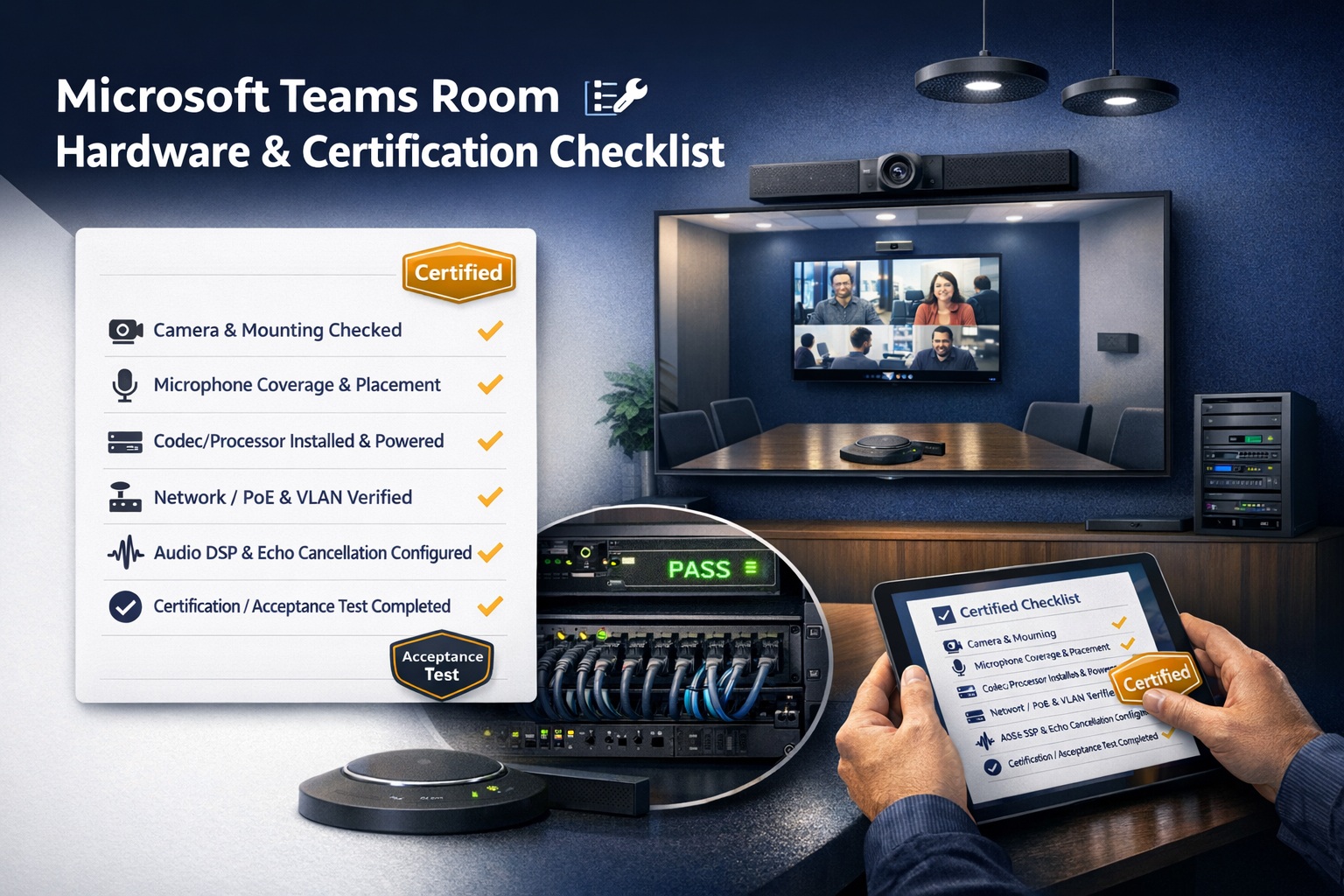
You’re about to spend thousands of dollars on Microsoft Teams Rooms hardware. Here’s what nobody tells you upfront: not all equipment that claims to work with Teams actually works reliably with Teams.
I’ve watched companies buy what looked like perfectly good conference room gear—cameras, microphones, displays, all from reputable brands—only to discover it doesn’t integrate properly with Teams Rooms. Constant crashes. Features that don’t work. Updates that break things.
The fix? Always buy Microsoft-certified hardware. Not “compatible with Teams.” Not “works with Teams.” Certified. There’s a huge difference.
This checklist walks through exactly what certification means, how to verify equipment is actually certified, what components you need for different room sizes, and how to avoid the expensive mistakes people make when they skip the certification verification step.
Let’s make sure you buy the right hardware the first time.
Why Microsoft Certification Actually Matters
Before diving into the checklist, let’s clarify why this matters so much.
What Certification Means
Microsoft tests hardware specifically for Teams Rooms. They verify:
- Drivers work correctly with Teams Rooms software
- Features integrate properly (camera framing, audio processing, etc.)
- Updates don’t break functionality
- Performance meets minimum standards
- The hardware + software combination is stable
Certified devices get ongoing driver updates coordinated with Teams Rooms software updates. They’re guaranteed to work together.
What Happens Without Certification
Uncertified hardware might work initially. But then:
- A Teams Rooms update breaks camera functionality
- Microphone echo cancellation doesn’t work properly
- Features advertised on the box don’t actually function in Teams
- Technical support from both Microsoft and manufacturer point fingers at each other
You’re left troubleshooting compatibility issues instead of having productive meetings. This is not theoretical—I’ve seen it happen repeatedly.
The Cost of Getting It Wrong
Buying uncertified equipment to save $500 seems smart until you’re spending $2,000 on a service call to diagnose why nothing works right. Or replacing the entire system because it’s fundamentally incompatible.
Stick with certified hardware. Period.
The Official Certification Database
Microsoft maintains a certification database. This is your starting point.
Where to Find It
Go to Microsoft’s official Teams Rooms certification page: microsoft.com/en-us/microsoft-teams/across-devices/devices
This lists all certified devices by category: all-in-one systems, cameras, microphones, speakers, displays, compute devices, and consoles.
The list updates regularly as new devices get certified and old ones are discontinued.
How to Verify Certification
Don’t trust the vendor’s website saying “Teams certified.” Verify it yourself:
- Go to Microsoft’s official certification database
- Search for the specific model number (not just brand)
- Confirm it’s listed as “Microsoft Teams Rooms certified”
Model numbers matter. The Logitech Rally Bar is certified. The Logitech Rally Bar Webcam (different product) might not be. Check exact model numbers.
Understanding Certification Levels
Microsoft Teams Rooms Certified: Full certification. The device is tested and approved for Teams Rooms systems.
Microsoft Teams Certified: Certified for personal Teams use (USB devices on PCs), but not necessarily for Teams Rooms systems. Don’t confuse these.
Skype for Business Certified: Old certification. Not guaranteed to work with Teams Rooms. Avoid unless also Teams Rooms certified.
Only buy equipment with “Microsoft Teams Rooms Certified” designation for your conference room deployment.
Core Hardware Components Checklist
Every Teams Room needs these components. Let’s check them one by one.
✓ Compute Device (Required)
This is the PC or console running Teams Rooms software.
Certification requirement: Must be Teams Rooms certified. This includes the hardware and pre-installed Teams Rooms software.
Popular certified options:
- Lenovo ThinkSmart Core + Controller
- HP Slice
- Logitech Tap (with integrated compute)
- Dell OptiPlex 7000 Series (specific models)
- Intel NUC (specific models certified for Teams Rooms)
What to verify:
- Exact model number matches certification database
- Comes with Teams Rooms license or you have license to assign
- Meets minimum specs (Windows 10 IoT or Android based on device)
- Has sufficient ports for your peripherals
Don’t: Use a regular Windows PC and install Teams Rooms software yourself. That’s not certified and leads to problems.
✓ Touch Console (Required)
The control panel users interact with to start meetings, adjust volume, share content.
Certification requirement: Must be certified Teams Rooms console.
Popular certified options:
- Logitech Tap
- Poly TC8
- Crestron TSS-770-B (for Crestron systems)
- Yealink MeetingBoard (all-in-one includes console)
What to verify:
- Certified specifically for Teams Rooms (not just “Teams compatible”)
- Compatible with your chosen compute device
- Appropriate size for your table/room
Important: Some consoles only work with specific compute devices from same manufacturer. Verify compatibility.
✓ Camera (Required)
Captures video of in-room participants.
Certification requirement: Must be Teams Rooms certified camera.
Categories:
All-in-one devices (camera + mics + speakers in one unit):
- Logitech Rally Bar series
- Poly Studio X series
- Yealink MeetingBar series
- Neat Bar series
Standalone cameras:
- Logitech Rally Camera
- Poly EagleEye cameras
- AVer CAM series (specific models)
- Jabra PanaCast
What to verify:
- Field of view appropriate for room size
- Resolution (1080p minimum, 4K better for larger rooms)
- AI features (auto-framing, speaker tracking) if desired
- Mounting options match your room layout
Room size matching:
- Small rooms (4-6 people): 90-120° FOV
- Medium rooms (6-12 people): 120° FOV with zoom
- Large rooms (12+ people): Wide FOV or multiple cameras
✓ Microphones (Required)
Captures audio from in-room participants.
Certification requirement: Teams Rooms certified microphones.
Categories:
Integrated (part of all-in-one devices):
- Built into Rally Bar, Poly Studio, etc.
- Adequate for small rooms
- Check coverage specs
Table microphones:
- Shure MXA310 (ceiling or table mount)
- Biamp Parlé TCM-XA (ceiling)
- Sennheiser TeamConnect series
- Jabra Speak series (smaller rooms)
Ceiling microphones:
- Shure MXA910
- Sennheiser TeamConnect Ceiling 2
- Biamp Parlé series
What to verify:
- Coverage area matches your table size
- Certification for Teams Rooms (critical for echo cancellation)
- Number needed for full table coverage
- Connection type compatible with your system
Coverage planning: Every seat should be within manufacturer’s specified pickup range. Usually 3-4 feet for table mics, farther for ceiling arrays.
✓ Speakers (Required)
Output audio so in-room participants hear remote attendees.
Certification requirement: Teams Rooms certified speakers.
Categories:
Integrated (all-in-one devices):
- Built into soundbar-style devices
- Fine for small/medium rooms
Separate speakers:
- QSC (various models)
- Biamp
- Bose (specific Teams certified models)
- Shure (ceiling speakers)
What to verify:
- Power output adequate for room size
- Mounting type (ceiling, wall, table)
- Certification for Teams Rooms
- Quantity needed for room coverage
Room size matching:
- Small rooms: Integrated speakers fine
- Medium rooms: Pair of quality speakers
- Large rooms: Distributed speaker system
✓ Display (Required)
Shows meeting participants and shared content.
Certification requirement: Not all displays need Teams certification, but certified ones offer additional features.
Options:
Teams Rooms certified displays:
- Microsoft Surface Hub 2S (all-in-one)
- Select models from Samsung, LG, Sony
Standard displays (non-certified):
- Any quality commercial display works
- 55-85″ typical for conference rooms
- 4K resolution standard
What to verify:
- Size appropriate for viewing distance
- HDMI input compatibility
- Mounting options (wall vs table stand)
Note: Displays don’t require certification to work, but certified displays may offer touch functionality or direct Teams integration.
Room-Size-Specific Checklists
Different room sizes need different equipment combinations.
Small Room Checklist (4-6 People)
Recommended approach: All-in-one device
✓ Compute + Console: Logitech Tap + Rally Bar Mini bundle ($3,000-$3,500)
Or:
✓ Compute: Lenovo ThinkSmart Core ($1,200-$1,500) ✓ Console: Logitech Tap ($1,000-$1,200) ✓ Camera/Mic/Speaker: Poly Studio X30 ($2,000-$2,500) ✓ Display: 55-65″ ($600-$1,000)
Total equipment: $4,800-$7,200
For compact meeting spaces, all-in-one devices simplify everything while delivering quality performance.
Medium Room Checklist (6-14 People)
Recommended approach: Modular components
✓ Compute: Lenovo ThinkSmart Core ($1,200-$1,500) ✓ Console: Logitech Tap ($1,000-$1,200) ✓ Camera: Logitech Rally Camera ($1,800-$2,000) ✓ Microphones: 1-2 Shure MXA310 ($1,500-$3,000) ✓ Speakers: Pair of ceiling speakers ($800-$1,500) ✓ Display: 75-85″ ($1,200-$2,000)
Total equipment: $7,500-$11,200
Add professional installation: $2,000-$4,000
Large Room Checklist (15+ People)
Recommended approach: Professional system
✓ Compute: Enterprise-grade compute device ($2,000-$3,000) ✓ Console: Professional control panel ($1,500-$2,500) ✓ Cameras: Multiple cameras or PTZ system ($4,000-$8,000) ✓ Microphones: Multiple ceiling arrays ($4,000-$8,000) ✓ Speakers: Distributed system ($2,000-$4,000) ✓ Displays: Multiple displays or video wall ($4,000-$8,000)
Total equipment: $17,500-$33,500
Professional design and installation essential at this scale: $5,000-$15,000
Verification Steps Before Purchase
Don’t just order equipment. Verify certification first.
Step 1: Check Microsoft’s Database
For every component:
- Note exact model number from vendor quote
- Search Microsoft Teams devices database
- Confirm it’s listed as “Microsoft Teams Rooms Certified”
- Check certification is current (not expired or pending)
Step 2: Verify Compatibility Between Components
Not all certified components work with all other certified components.
Check:
- Console compatible with compute device?
- Camera/mic/speaker compatible with compute device?
- All components use compatible connection types (USB, HDMI, etc.)?
Manufacturer websites usually list compatible pairings. When in doubt, ask before buying.
Step 3: Confirm Bundle Certifications
Pre-configured bundles (like Logitech Tap + Rally Bar) are certified as complete systems. These are usually safe bets.
If building your own combination, each component needs individual certification AND the combination needs to work together.
Step 4: Verify License Requirements
Teams Rooms require specific licenses:
- Microsoft Teams Rooms Basic (free, limited features)
- Microsoft Teams Rooms Pro ($40/room/month)
Ensure your Microsoft 365 subscription includes or can add these licenses.
Some hardware bundles include trial licenses. Know what happens when trial ends.
Step 5: Check Vendor Authorization
Buy from Microsoft-authorized resellers. Unauthorized sellers might offer cheaper prices but:
- No manufacturer warranty
- Potentially counterfeit or gray-market goods
- No access to certified firmware updates
Authorized resellers are listed on manufacturer websites.
Common Certification Mistakes to Avoid
People mess this up in predictable ways. Don’t be those people.
Mistake #1: Assuming “Works with Teams” Means “Certified”
Marketing language is deliberately confusing. “Works with Teams” or “Teams compatible” is not the same as “Microsoft Teams Rooms Certified.”
Fix: Only buy equipment explicitly listed in Microsoft’s Teams Rooms certification database.
Mistake #2: Buying Consumer Versions of Pro Equipment
The Logitech C920 webcam “works with Teams” for personal use. It’s not certified for Teams Rooms.
The Logitech Rally Camera is Teams Rooms certified. Different products.
Fix: Verify the exact model is certified for Teams Rooms, not just Teams.
Mistake #3: Using Old Skype for Business Certified Gear
Your company has old Skype for Business certified equipment. Can you use it?
Maybe, but probably not recommended. Skype for Business certification doesn’t guarantee Teams Rooms compatibility.
Fix: Verify equipment has current Teams Rooms certification, not just legacy Skype certification.
Mistake #4: Mixing Certified and Uncertified Components
Three certified components plus one uncertified piece creates an uncertified system.
Fix: Every component must be certified. No exceptions.
Mistake #5: Ignoring Firmware Requirements
Certified hardware needs current firmware to maintain certification. Old firmware versions can break compatibility.
Fix: Before deployment, update all firmware to latest versions. Establish ongoing update process.
Post-Purchase Verification
You’ve bought certified equipment. Verify it’s actually certified before installation.
Unboxing Checklist
✓ Model number on device matches certification database ✓ Serial numbers recorded for support purposes ✓ Firmware version documented ✓ All accessories included (cables, mounts, power supplies) ✓ Manufacturer warranty cards/documentation present
Pre-Installation Testing
Before installing in conference room:
✓ Connect all components on a test bench ✓ Power on and verify Teams Rooms software loads ✓ Test camera, mic, speaker individually ✓ Run a test Teams meeting ✓ Verify all features work as expected ✓ Update firmware if needed ✓ Document any issues before installation
Catching problems on the bench is easier than troubleshooting in a completed installation.
Integration and Compatibility Considerations
Teams Rooms don’t exist in isolation. They integrate with other systems.
Calendar Integration Compatibility
Teams Rooms sync with Microsoft 365 or Exchange calendars natively. Verify:
✓ Room mailbox created in Microsoft 365 ✓ Appropriate licenses assigned ✓ Calendar processing configured correctly ✓ Teams Rooms can access calendar (network/firewall)
For non-Microsoft calendaring (Google, etc.), integration is more complex. Verify compatibility before assuming it’ll work.
Network Requirements Compatibility
Teams Rooms need solid network connectivity. Verify:
✓ Dedicated network drop in room (hardwired Ethernet preferred) ✓ Bandwidth adequate (5-10 Mbps minimum, more for 4K) ✓ Network allows Teams traffic (ports/URLs whitelisted) ✓ Quality of Service (QoS) configured for Teams traffic
Proper network infrastructure is essential for reliable operation.
Platform Compatibility
Want to use the same room for both Teams and Zoom meetings?
Most certified Teams Rooms hardware CAN work with other platforms, but you’d need separate systems or dual-boot configurations. Verify this capability before assuming it works.
Comparing different conference platforms helps you understand which works best for your needs.
Certification Maintenance
Certification isn’t forever. Maintaining it requires ongoing effort.
Firmware Updates
Manufacturers release firmware updates coordinated with Teams Rooms software updates. You need to:
✓ Monitor manufacturer update notifications ✓ Test updates in non-critical room first ✓ Deploy updates regularly (monthly or quarterly) ✓ Document current firmware versions
Skipping updates can break compatibility when Teams Rooms software updates automatically.
Hardware Lifecycle
Certified hardware doesn’t stay certified forever:
- Manufacturers discontinue products
- Microsoft updates certification requirements
- Hardware becomes obsolete
Plan for replacement every 5-7 years even if hardware still functions. Unsupported hardware creates risk.
Monitoring Tools
Use Microsoft Teams Rooms management tools to monitor:
✓ Device health status ✓ Incident reports ✓ Update status ✓ Usage analytics
Proactive monitoring catches issues before they affect meetings.
When to Get Professional Help
Some deployments are straightforward DIY. Others need pros.
DIY-Appropriate Scenarios
Single small room using all-in-one certified bundle. You’re comfortable with:
- Microsoft 365 administration
- Basic network troubleshooting
- Following manufacturer setup guides
Call Professionals For
- Multiple rooms requiring consistent deployment
- Large or complex spaces
- Integration with building systems
- Mission-critical spaces where failure isn’t acceptable
- Custom room layouts needing design work
Expert Teams Rooms installers know certification requirements, have established vendor relationships, and deliver reliable deployments.
The Certification Guarantee
Here’s the bottom line: Microsoft certification isn’t a nice-to-have. It’s essential for reliable Teams Rooms deployments.
Certified hardware works. Updates don’t break it. Features function as advertised. Support is straightforward when issues arise.
Uncertified hardware is a gamble. Maybe it works. Maybe it doesn’t. Maybe it works until an update breaks it. You’re on your own troubleshooting compatibility problems.
The certification verification process takes 30 minutes. It prevents thousands of dollars in wasted equipment and hundreds of hours of troubleshooting.
Check the database. Verify every component. Buy only certified hardware.
Your future self—the one enjoying reliable, functional Teams Rooms instead of fighting with incompatible equipment—will thank you.