
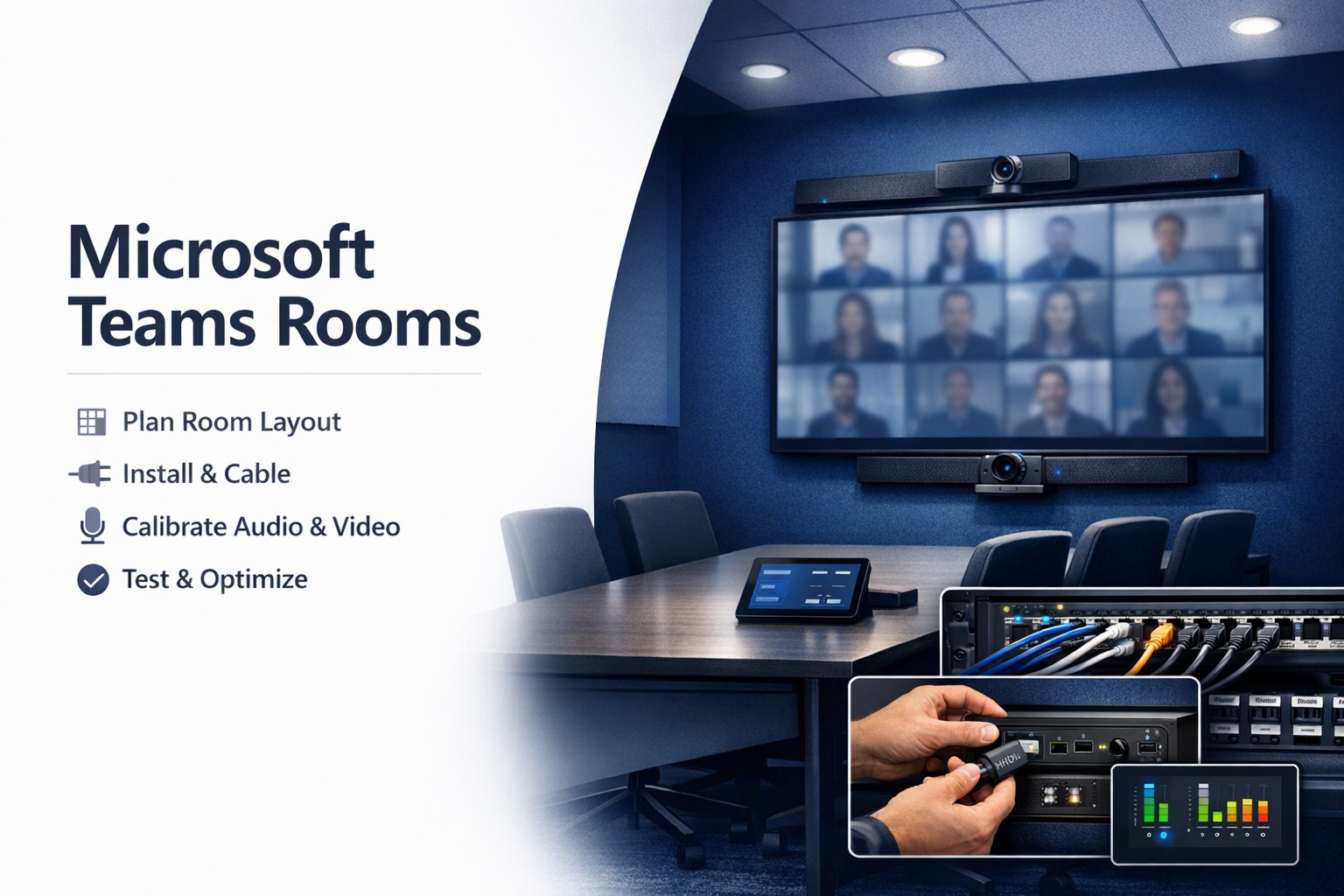
So your company uses Microsoft 365 and you’re tired of people huddling around laptops for conference calls. You’ve decided to build proper Teams Rooms. Smart move.
Here’s what nobody tells you upfront: Teams Rooms work brilliantly when set up correctly. They’re also finicky as hell when you get things wrong. I’ve seen $40,000 boardrooms that people avoid because the system won’t reliably connect. I’ve also seen $8,000 huddle rooms that work perfectly every single time.
The difference isn’t the budget. It’s understanding what Teams Rooms actually need to function properly and following through on the details that matter.
This guide walks through the complete process—planning what you actually need, selecting compatible hardware, proper installation and configuration, calendar integration, optimization for your specific use cases, and troubleshooting the problems that inevitably pop up.
By the end, you’ll know exactly how to build Teams Rooms that your people will actually use instead of fighting against.
Let’s get started.
Understanding What Teams Rooms Actually Are
Before buying anything, let’s clarify what we’re building.
Teams Rooms vs Teams on a Laptop
Regular Teams is the software on your computer. Join meetings, chat, share screen—all from your personal device.
Teams Rooms is dedicated hardware and software turning entire conference spaces into Teams-native meeting rooms. Walk in, tap a button, and you’re in your scheduled meeting. No laptops required.
The experience is fundamentally different. Teams Rooms are designed for groups, with room-scale cameras, microphones covering the whole table, and displays everyone can see. Personal Teams is designed for individuals.
The Core Components
A Teams Room consists of:
Compute device: Small PC or console running Windows 10 IoT or Android (depending on system). This is the “brain” running Teams Rooms software.
Touch console: Tablet or panel (usually mounted on conference table) for controlling the room. Start meetings, adjust volume, share content, manage settings.
Camera: Conference room camera capturing everyone in the space. Could be a single wide-angle camera, PTZ camera, or intelligent camera with auto-framing.
Microphones: Usually multiple mic arrays covering the seating area. Ceiling mics, table mics, or integrated soundbar mics.
Display: One or more screens showing meeting participants and shared content.
Speakers: Audio output so remote participants are clearly audible in the room.
All of these connect to the compute device, which connects to your network and runs the Teams Rooms app.
Microsoft’s Certification Program
Microsoft certifies hardware specifically for Teams Rooms. This matters enormously.
Certified systems are tested to work together properly. Drivers are optimized. Updates are coordinated. You’re not troubleshooting compatibility issues between random hardware pieces.
Uncertified hardware might work initially but creates problems long-term. Updates break things. Performance degrades. Support is complicated.
Always use certified Teams Rooms hardware. It costs more upfront but saves massive headaches.
Planning Your Teams Rooms Deployment
Most problems happen because people skip proper planning. Don’t be those people.
Assessing Your Actual Needs
Start by identifying which spaces need Teams Rooms.
High-priority spaces: Main conference rooms that host frequent meetings with remote participants. Executive boardrooms where everything needs to work flawlessly.
Medium-priority: Secondary conference rooms, training spaces, areas used regularly but not daily for video meetings.
Low-priority: Rarely-used spaces, areas where people could reasonably bring laptops instead.
Budget and resources are limited. Focus on spaces where Teams Rooms deliver clear value before trying to equip every closet in the building.
Room Size and Capacity
Teams Rooms hardware scales by room size:
Small rooms (4-6 people): All-in-one devices like Poly Studio or Logitech Rally Bar Mini. Camera, mics, and speakers in one unit. Simplifies everything.
Medium rooms (6-14 people): Separate camera, mic arrays, and speakers. More hardware but better coverage and audio quality.
Large rooms (15+ people): Multiple mic zones, possibly multiple displays, serious camera systems with tracking. Professional installation basically required.
Match hardware to actual room size and typical occupancy. Don’t put small-room equipment in a 20-person boardroom or overspec a tiny huddle room.
Use Case Considerations
How will people actually use these rooms?
Standard meetings: Video calls where everyone’s seated at a table. Most common use case.
Presentations: One person presenting at the front, audience in seats. Needs presenter camera positioning and possibly wireless presentation.
Training: Instructor and students. Might need document camera, whiteboard camera, or dual displays.
Hybrid all-hands: Large room with presentation and town hall capabilities. Needs serious audio coverage and multiple cameras.
Different use cases need different equipment configurations. A one-size-fits-all approach fails.
Network Requirements
Teams Rooms need solid network connectivity. Not negotiable.
Bandwidth: 4-8 Mbps per room for HD video. More for 4K or multiple video streams.
Latency: Keep it under 50ms. Higher latency causes annoying delays in conversation.
Reliability: Hardwired Ethernet is strongly preferred. WiFi works but creates potential issues. For permanent installations, run cable.
QoS: Configure Quality of Service on your network to prioritize Teams traffic. Otherwise, someone downloading files chokes your video call.
Firewall: Ensure required ports and URLs are accessible. Microsoft publishes specific requirements. Your IT team needs to implement them.
Poor network connectivity causes more Teams Rooms problems than anything else. Get this right before worrying about cameras.
Hardware Selection and Certified Devices
Now for the fun part—choosing actual equipment.
All-in-One Systems
These bundle camera, mics, speakers, and sometimes compute into one device.
Logitech Rally Bar / Rally Bar Mini: Popular choices. Rally Bar for medium rooms, Rally Bar Mini for small spaces. Good video quality, solid audio, relatively easy setup.
Poly Studio X Series: X30 for small rooms, X50 for medium, X70 for large. Solid performers with clean integration.
Yealink MeetingBar: Budget-friendly option. Quality isn’t quite Logitech/Poly level but functional for the price.
Pros: Simplified installation, fewer cables, integrated design. Everything’s tested to work together.
Cons: Less flexibility. If one component is wrong for your room, you’re stuck with it. Harder to upgrade individual pieces.
Modular Component Systems
Build your own system with separate camera, mics, speakers, compute, and console.
Cameras:
- Logitech Rally Camera: Excellent quality, 15x zoom, auto-framing
- Poly EagleEye series: Multiple options for different room sizes
- AVer CAM520 Pro2: Budget option with decent quality
Microphones:
- Shure MXA310: Table array mic, excellent pickup pattern
- Biamp Parlé: Ceiling or table options, great audio processing
- Sennheiser TeamConnect Ceiling 2: Premium ceiling array
Speakers:
- QSC: Quality ceiling speakers for permanent installation
- Biamp: Various options for different room configurations
- Integrated with soundbars (Rally Bar, Poly Studio)
Compute:
- Lenovo ThinkSmart Core: Popular compute device
- HP Slice: Another solid option
- Logitech Tap with compute bundle
Console:
- Logitech Tap: Most common, clean interface, reliable
- Poly TC8: Alternative with different UI approach
- Crestron: High-end option for integrated control systems
Pros: Maximum flexibility. Choose best component for each need. Easy to upgrade individual pieces.
Cons: More complex setup. More cables. Requires more planning and installation expertise.
What to Actually Buy
For most organizations:
Small rooms: All-in-one like Logitech Rally Bar Mini or Poly Studio X30. Simplicity wins here.
Medium rooms: Either all-in-one (Rally Bar, Poly X50) or modular with Rally Camera + table mics + decent speakers.
Large rooms: Modular approach with professional components. Expert boardroom installations need customization all-in-ones can’t provide.
Don’t cheap out on compute and console. These are the brains and interface—get quality components.
Installation and Physical Setup
Hardware selected. Now let’s install it properly.
Display Mounting and Positioning
Displays should be at appropriate height for seated viewing. Center of screen at or slightly above eye level when seated—roughly 42-48 inches from floor for standard conference tables.
Wall mounting is cleanest. Use quality mounts that allow adjustment. You’ll need to level and fine-tune positioning.
For dual displays (common in medium/large rooms), position them side by side with minimal gap. One shows video participants, the other shows shared content.
Camera Placement
Camera positioning affects everything. Get this wrong and the best camera looks terrible.
Height: Eye level or slightly above when people are seated. Don’t mount cameras way up high creating unflattering angles.
Position: Centered on seating area. For rectangular tables, camera typically goes at one end capturing everyone along the length.
Distance: Depends on camera field of view and room size. Test framing before permanent mounting—everyone should be visible without excessive dead space.
Avoid backlighting: Don’t position cameras where windows are behind participants. Creates silhouettes. Position camera so windows are behind the camera or to the side.
Microphone Placement Strategy
Audio quality matters more than video quality. Bad audio kills meetings.
Coverage: Every seat should be within rated pickup distance of a microphone. Usually 3-4 feet for table mics, farther for ceiling arrays.
Table mics: Position centrally on table. For large tables, use multiple mic zones. Keep distance from speakers to avoid feedback.
Ceiling mics: Position directly above seating areas, not above speakers or displays. Configure lobe directions (if adjustable) to aim at seating.
Boundary consideration: Keep mics away from hard reflective surfaces when possible. Reflections create phase issues and muddy audio.
Speaker Positioning
Speakers should be near the display(s) so it feels like remote participants are speaking from the screen. Natural and intuitive.
Volume calibration: Set levels so remote audio is clearly audible but not overwhelming. Match approximate loudness of in-room speech.
Acoustic treatment: Hard rooms (glass, concrete, tile) need acoustic panels or soft materials. Echo and reverberation make audio terrible for remote participants.
If you’re doing proper lighting and sound calibration, this is when that work happens.
Cable Management
Clean cable management isn’t just aesthetic. It affects reliability and maintenance.
Run cables properly: in walls, through conduits, or in raceways. Don’t just drape cables and call it done. Professional cable management makes systems maintainable and trouble-free.
Label everything. Every cable. Both ends. When troubleshooting at 2 AM before a board meeting, labels save you.
Software Configuration and Setup
Hardware’s installed. Now for the software side.
Creating Room Accounts
Each Teams Room needs a Microsoft 365 account. This is different from user accounts.
Create room mailbox: In Microsoft 365 admin center, create a room mailbox. This gives the room a calendar identity people can book.
Assign Teams Rooms license: Each room needs a Microsoft Teams Rooms license (separate from standard Teams licenses, around $40/month per room).
Set resource booking policy: Configure how far in advance people can book, maximum meeting length, who can book, automatic processing of meeting requests.
Provisioning the Room
On the Teams Rooms device:
- Power on and connect to network
- Sign in with room account credentials
- Complete initial setup wizard
- Configure settings (time zone, language, etc.)
- Test connectivity to Microsoft 365 services
The device will download updates and configure itself. This takes 15-30 minutes. Don’t interrupt it.
Admin Settings Configuration
Access settings through the admin interface (usually by tapping the settings icon on console with admin password).
Meeting settings:
- Automatic meeting acceptance (usually enable this)
- Proximity join (allows nearby users to connect their devices)
- Content sharing options
- Default microphone and speaker levels
Device settings:
- Network configuration
- Display arrangement (if multiple displays)
- Camera defaults
- Peripheral management
Policies:
- Push company policies from Microsoft 365 admin center
- Control available features
- Set meeting quality defaults
Peripheral Configuration
Ensure all hardware is recognized:
Camera: Verify it’s detected, set default framing, configure auto-framing if available.
Microphones: Check that all mic arrays show up, test pickup from all seating positions.
Speakers: Confirm output routing, test clarity at various volumes.
Console: Verify touch response, confirm connection to compute device.
If any peripheral isn’t detected, check connections, drivers, and device compatibility.
Calendar Integration
This is critical for usable Teams Rooms. Get calendar sync working properly.
Exchange/Microsoft 365 Integration
If your organization uses Microsoft 365 or Exchange, integration is straightforward:
Room mailbox: The room mailbox you created becomes bookable in Outlook.
Automatic sync: Meetings scheduled for that room automatically appear on the Teams Room console.
One-touch join: When meeting time arrives, “Join” button appears on console. Tap once to enter the meeting.
Calendar integration is native and requires minimal configuration beyond proper room account setup. This is a major advantage Teams Rooms has over platforms like Zoom that need more integration work.
Third-Party Calendar Systems
Some organizations use non-Microsoft calendaring:
Google Workspace: Possible but requires additional configuration. Microsoft provides some guidance but it’s clunkier than native Exchange integration.
Other systems: Generally problematic. Teams Rooms are designed to work with Microsoft calendaring. Fighting that creates ongoing headaches.
If you’re heavily invested in non-Microsoft calendaring, consider whether Teams Rooms is the right choice or if alternative platforms might integrate better with your environment.
Scheduling Panel Integration
External scheduling displays mounted outside rooms showing availability and upcoming meetings.
Panels sync with the room mailbox, displaying:
- Current status (available, occupied, upcoming)
- Next meeting details
- Option to book available room on-the-spot
Brands like Robin, Joan, or Room Manager integrate with Microsoft calendaring and Teams Rooms. Setup requires linking panel accounts to room mailboxes and configuring display preferences.
Optimization for Different Room Types
Different spaces need different configurations.
Small Huddle Rooms
Compact collaboration spaces for 4-6 people need simple, reliable setups.
Configuration priorities:
- All-in-one device for simplicity
- Automatic framing so everyone stays visible
- Simple interface—walk in, tap join, done
- Minimal settings users can mess up
Keep it dead simple. Complexity in huddle rooms means people won’t use them correctly.
Executive Boardrooms
High-stakes meeting spaces where everything must work flawlessly.
Configuration priorities:
- Multiple mic zones covering entire table
- PTZ camera or intelligent tracking camera
- Dual displays (video + content)
- Backup systems or quick-swap spare equipment
- Professional audio tuning
- Dedicated IT support contact
Budget doesn’t matter as much as reliability. These rooms can’t fail during board meetings.
Training Rooms
Spaces for instruction, workshops, education.
Configuration priorities:
- Document camera for showing materials
- Whiteboard camera with content enhancement
- Instructor-focused camera in addition to room camera
- Recording capability for absent students
- Easy content sharing from instructor device
Flexibility matters here. Instructors need multiple ways to share content.
Large Conference or Town Hall Spaces
Rooms hosting 20+ people or hybrid events.
Configuration priorities:
- Multiple camera angles covering audience and presenters
- Distributed microphone coverage with zone control
- Speaker array for even audio distribution throughout space
- Professional AV integration
- Possible video wall or multiple displays
- Operator control station for complex meetings
These need professional planning and installation. DIY setups fail in spaces this complex.
Performance Tuning and Optimization
System’s working. Now make it work well.
Video Quality Settings
Teams Rooms adapt video quality based on bandwidth, but you can influence it:
Resolution preferences: 1080p standard, 4K where supported and bandwidth allows.
Frame rate: 30fps is typical, 60fps for smoothness if bandwidth supports it.
Bandwidth allocation: Configure policies in Teams admin center to prioritize video quality or conserve bandwidth based on your network capacity.
Audio Optimization
Great video with bad audio is useless. Prioritize audio quality.
Noise suppression: Enable AI noise suppression (available in Teams). Reduces keyboard clicks, paper shuffling, HVAC noise.
Echo cancellation: Should be enabled by default. Verify it’s working—have remote participant speak while room mics are active. No echo should return.
Volume normalization: Configure so remote participants and in-room speakers are at similar loudness levels.
Room acoustics: Add acoustic treatment if room is echoey. Soft materials absorb sound. Hard surfaces reflect it. Better room acoustics = better audio quality.
Intelligent Features
Modern Teams Rooms have AI-powered features worth enabling:
Auto-framing: Camera automatically adjusts framing as people enter or leave the room. Keeps everyone visible.
Speaker tracking: Camera follows whoever’s speaking. Not useful for every room but helpful in some scenarios.
People recognition: Some systems can identify individuals and display names. Privacy concerns make this controversial but it exists.
Background blur: For rooms where backgrounds are messy or distracting.
Test these features before enabling permanently. Sometimes they help, sometimes they’re gimmicky distractions.
Common Problems and Troubleshooting
Things will break. Here’s how to fix them.
Can’t Join Meetings
Symptoms: “Join” button doesn’t appear, or tapping it does nothing.
Common causes:
- Room account credentials expired or incorrect
- Network connectivity issues
- Microsoft 365 service outage
- Calendar sync broken
Fixes:
- Verify room account is active and licensed in Microsoft 365 admin
- Test network connectivity (can the device reach the internet?)
- Check Microsoft 365 service health dashboard
- Re-authorize calendar connection if needed
Poor Audio Quality
Symptoms: Echo, distortion, people can’t hear each other clearly.
Common causes:
- Incorrect microphone selection
- Echo cancellation disabled or not working
- Room acoustics too reflective
- Microphone coverage gaps
Fixes:
- Verify correct microphone is selected in settings
- Enable echo cancellation and noise suppression
- Lower speaker volume
- Add acoustic treatment to hard-surfaced rooms
- Test coverage—have someone speak from each seat while checking audio
Video Issues
Symptoms: Grainy video, choppy frame rate, camera not detected.
Common causes:
- Insufficient bandwidth
- Camera disconnected or driver issue
- Wrong camera selected
- Poor lighting
Fixes:
- Run network speed test (need 5+ Mbps upload minimum)
- Check camera USB/network connection
- Verify correct camera in device settings
- Improve room lighting (especially on participants’ faces)
Console Unresponsive
Symptoms: Touch panel frozen, not responding to taps.
Common causes:
- Software crash
- Compute device disconnected
- Power issue
Fixes:
- Restart the console app
- Restart the compute device
- Check all cable connections
- Update software to latest version
Ongoing Maintenance and Management
Teams Rooms need ongoing care to stay functional.
Update Management
Microsoft pushes regular updates to Teams Rooms software. You need a strategy:
Automatic updates: Easiest approach. Updates install automatically overnight. Risk is that updates occasionally break things.
Staged rollout: Test updates on a few rooms before deploying to all. Takes more work but reduces risk.
Manual control: Delay updates until thoroughly tested. Most conservative but requires active management.
Most organizations choose automatic updates with monitoring to catch problems quickly.
Remote Monitoring
Use Teams Rooms monitoring tools:
Microsoft Teams Admin Center: Shows health status of all rooms. Alerts when rooms go offline or experience issues.
Third-party monitoring: Tools like Martello or Vyopta provide deeper monitoring and analytics.
Regular health checks: Schedule weekly reviews of room health reports. Catch degrading issues before they become failures.
User Support
Despite best efforts, users will need help:
Quick reference guides: Simple one-page docs in each room showing basic operations.
Help button: Configure to directly contact support or display help resources.
Ticket system: Clear process for reporting problems. Track issues to identify patterns.
Regular training: Quarterly refreshers on how to use rooms effectively. Best practices for productive meetings benefit everyone.
Security Considerations
Conference rooms handle sensitive information. Secure them properly.
Device Security
Physical access: Limit who can access admin settings. Use strong admin passwords. Consider physical locks on equipment closets.
Network isolation: Put Teams Rooms on dedicated VLANs. Limit access to corporate network resources they don’t need.
Update discipline: Keep systems updated. Security patches matter. Video conferencing security practices apply to room systems too.
Meeting Security
Lobby controls: Configure who can bypass lobby (organization members) vs who needs admission (guests).
Recording policies: Set clear policies on when recording is allowed. Make sure recordings are stored securely.
Screen sharing controls: Limit who can share content. Prevent unauthorized content from appearing on screen.
Encryption: Teams meetings are encrypted by default. Encrypted communication is essential for protecting sensitive discussions.
Cost Considerations
Let’s talk real money for different deployment scenarios.
Small Room Budget
- All-in-one device (Logitech Rally Bar Mini): $2,000
- Logitech Tap console: $1,000
- Display (if needed): $500-$800
- Installation (DIY or light professional help): $500-$1,000
- Teams Rooms license (annual): $480
- Total first year: $4,480-$5,280
Medium Room Budget
- Camera (Logitech Rally): $1,800
- Microphone system (Shure MXA310): $1,500
- Speakers: $600
- Compute + console (Lenovo + Tap): $2,200
- Display: $800-$1,200
- Professional installation: $2,000-$3,000
- Teams Rooms license (annual): $480
- Total first year: $9,380-$11,780
Large Room Premium
- Multiple cameras and mics: $8,000-$12,000
- High-quality speakers and audio processing: $3,000-$5,000
- Compute + control system: $3,000-$5,000
- Multiple displays or video wall: $4,000-$8,000
- Professional installation and integration: $8,000-$15,000
- Teams Rooms license (annual): $480
- Total first year: $26,480-$45,480
These are realistic numbers. Budget accordingly.
When to Get Professional Help
Some Teams Rooms deployments are DIY-friendly. Others absolutely need pros.
DIY-Appropriate Scenarios
Small rooms with all-in-one devices where you’re comfortable with:
- Running network cable (or have IT who can)
- Following manufacturer setup instructions
- Basic troubleshooting
- Microsoft 365 admin tasks
Call Professionals For
- Multiple rooms needing consistent deployment
- Large or complex spaces with serious AV requirements
- Integration with existing building systems
- Organizations without internal IT expertise
- Mission-critical spaces where failure isn’t acceptable
Professional conferencing installation services bring expertise, proper tools, established relationships with vendors, and accountability. For serious deployments, it’s worth it.
The Reality of Teams Rooms
Here’s my honest take after seeing dozens of Teams Rooms deployments:
When done right, Teams Rooms are fantastic. Walk in, tap join, have your meeting. Everything works. People use them daily because they’re actually easier than laptop-based meetings.
When done wrong, they’re expensive headaches. Flaky connections, poor audio, complicated operation, constant support calls. People avoid the rooms and go back to huddling around laptops.
The difference is doing the work: proper planning for actual use cases, selecting appropriate hardware, professional installation, correct configuration, network readiness, ongoing maintenance, and user training.
It’s not rocket science. It’s just doing all the steps instead of skipping the ones that seem boring.
So if you’re deploying Teams Rooms, commit to doing it properly. Budget for quality hardware, plan the deployment thoughtfully, get help where you need it, and maintain systems actively.
Do that and you’ll build conference rooms people actually want to use. Skip steps and you’ll build expensive monuments to good intentions that ultimately fail.
Choose wisely.